 HydroNode
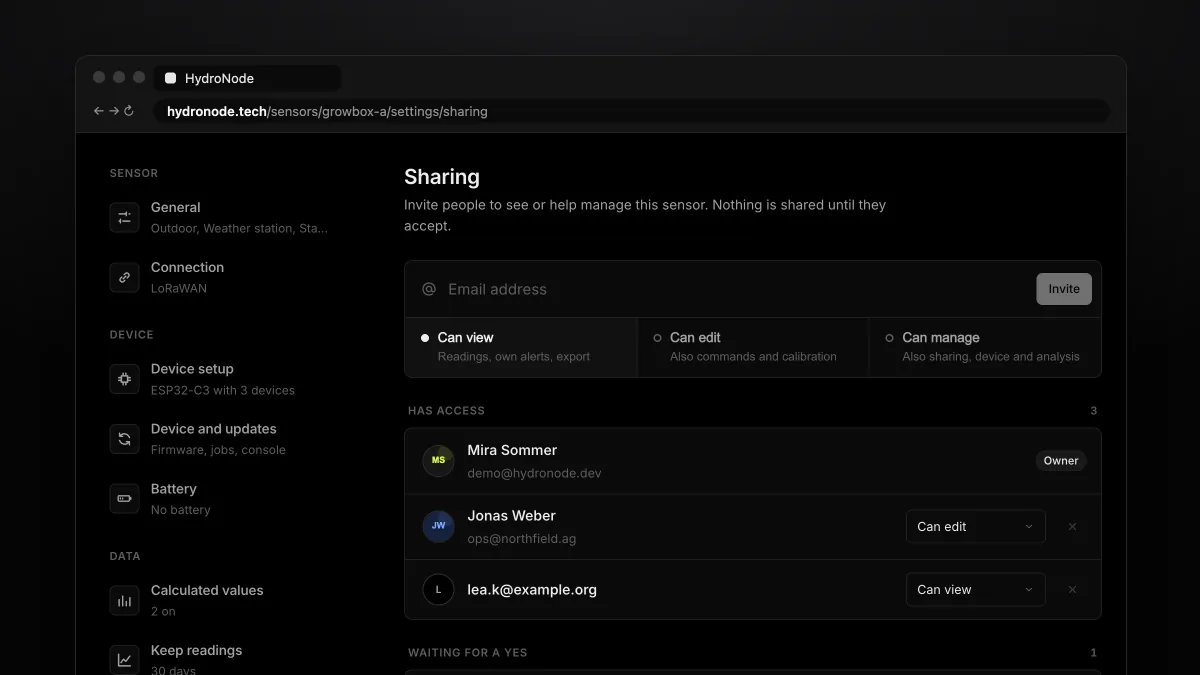
Sharing sensors is rebuilt. Invite any email address, with or without a HydroNode account, and pick one of three clear levels. Nothing is shared until the other person says yes. Everyone with access sets their own alerts, and you change a level without inviting again. Here is how it works and who can do what.
Three levels
Invite
- Open SharingOn the sensor page press Settings at the top right, then AccessSharing on the left.
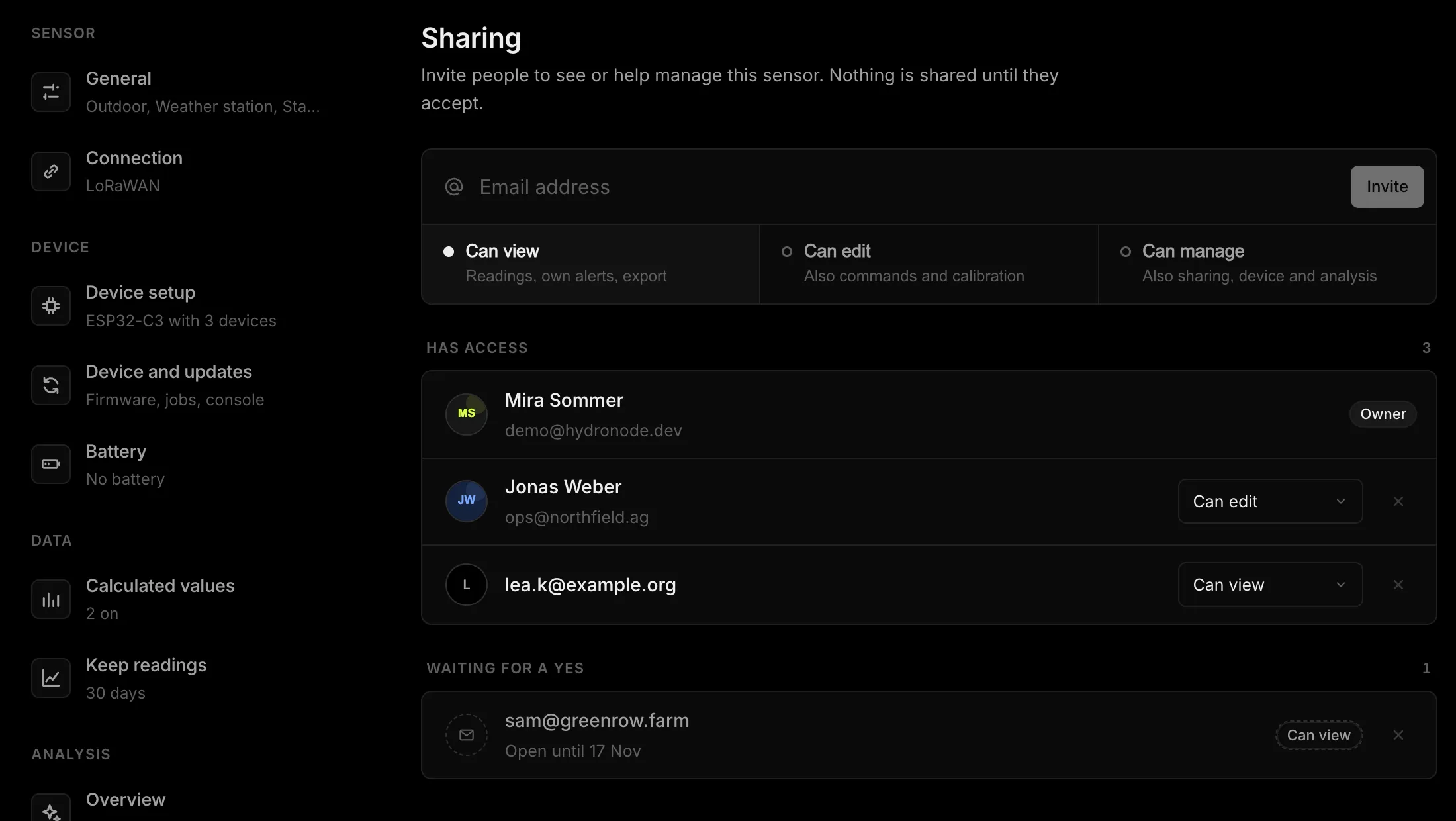
- Address and levelEnter the email address, pick Can view, Can edit or Can manage below it and press Invite.
- Wait for the yesThe invite waits under Waiting for a yes for 14 days. The × next to it withdraws it.
- InviteEmail and level
- RequestMessage or email
- YesAccept in Messages
- AccessOwn alerts from day one
If the address has a HydroNode account, the request lands in its messages. Any other address gets an email with a link. HydroNode answers the same either way, so the field cannot be used to find out who has an account.
Accept
A request shows in MessagesAccount with the sensor, the sender, the level and when it runs out. Answer it right there with Accept or Decline. Open requests are also on your profile under Shares waiting for you.
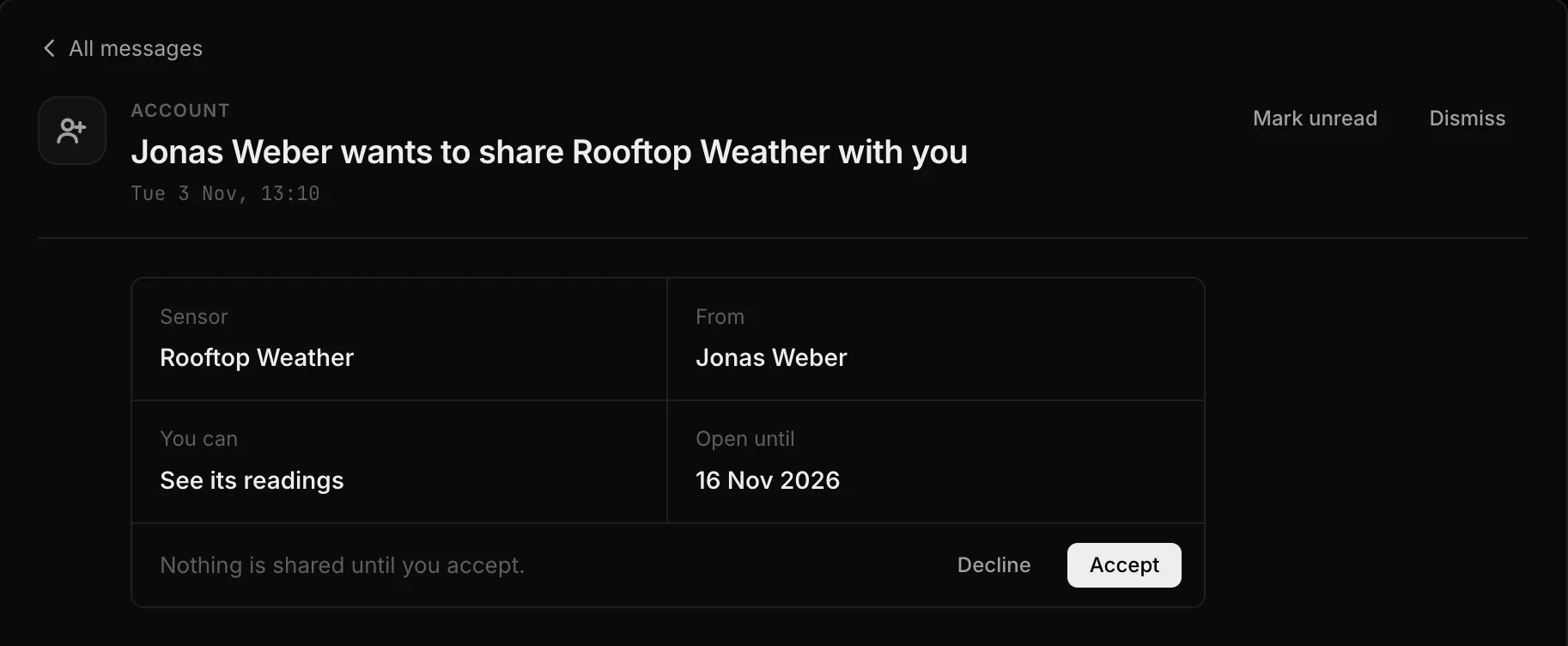
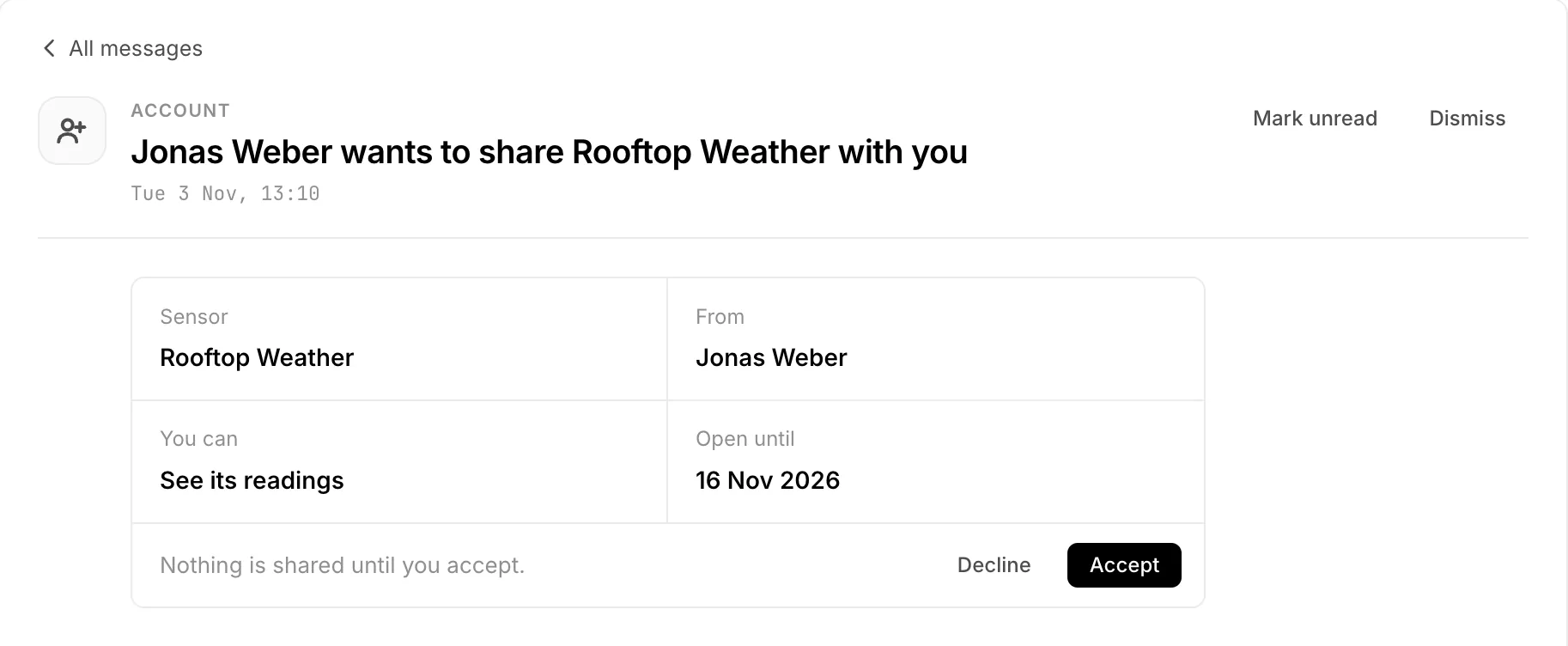
- The link in the invite email shows who invites you to which sensor. Opening it changes nothing. Sign in with any account and accept.
- Sign in with the invited address and the invite also shows in your messages.
- A second link in the email stops all invites to that address, from anyone.
- The apps show requests as messages. Accept them on the web for now.
Own alerts for everyone
Under SettingsMonitoring, Tell me belongs to whoever looks at it. Someone with Can view can get a push when the sensor goes offline, without changing anything for the owner. On a shared sensor everything starts off. When a sensor counts as delayed or offline stays with the owner and Can manage. When a share ends, its alerts end too.
Change, remove, leave
| What | How |
|---|---|
| Change a level | Pick another level next to the person. Applies at once, no new invite. |
| Remove | × next to the person, then Remove. Access and alerts end at once. |
| Leave | On a shared sensor the entry reads Your access. Leave sensor ends the share, the owner gets a message. |
| Managers | Can manage changes and removes Can view and Can edit. Only the owner touches Can manage. |
What others see of you
The access list shows names and pictures. Turn off Public profile under ProfilePreferences and others only see your address. An open invite never shows a name or picture. You send up to 20 shares a day, and a sensor has at most 10 open invites.
Where to go next
- Every rule in detail: Sharing and Access in the docs.
- What automations, calibration and export can do: Operations.
- Set up alerts the right way: Alerts when a sensor goes quiet.