Integration Guide
Get your first device sending readings to HydroNode. Create a sensor, pick the path that fits your hardware and check that the values arrive.
What you need before starting
hydronode.tech. It is free, with up to 20 sensors per account and every feature included. Your first sensor
In HydroNode a sensor is the identity of your device. It gets a Sensor ID and a Secret, and every request from the device is signed with them.
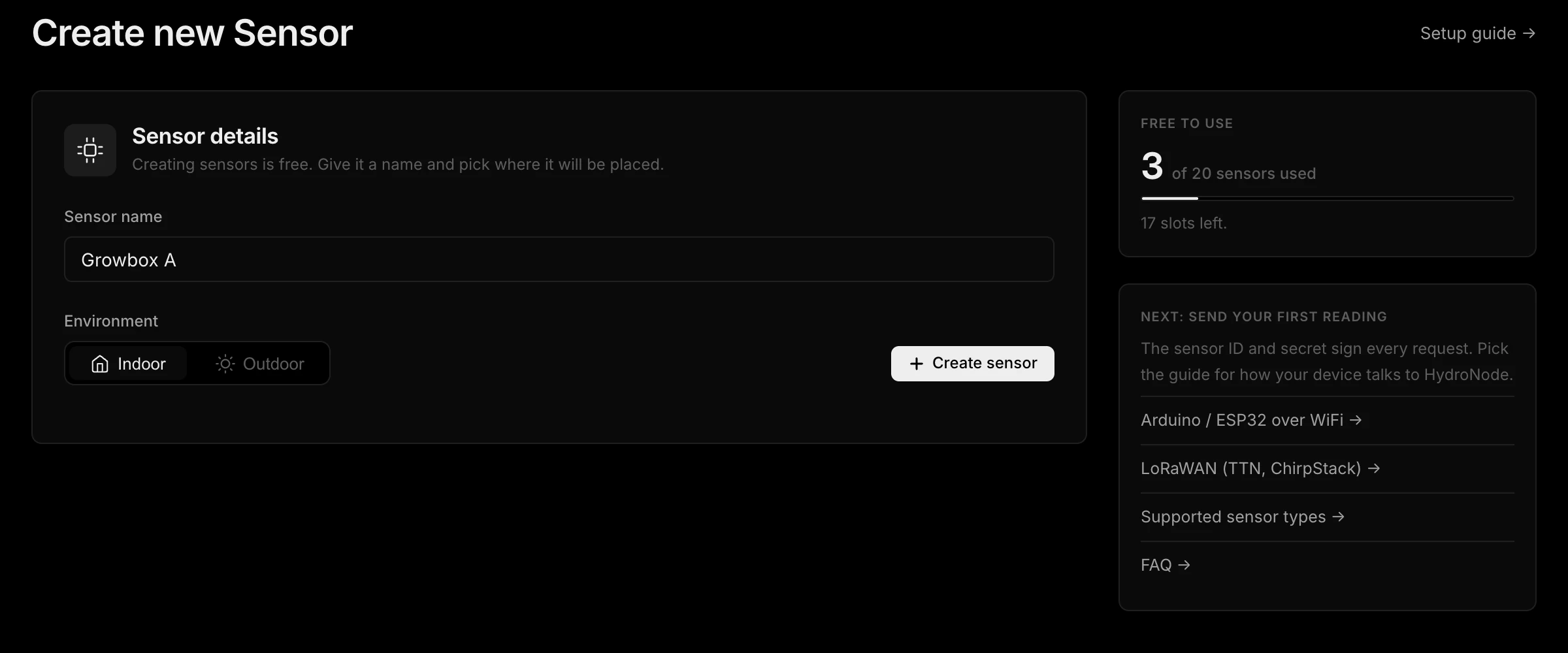
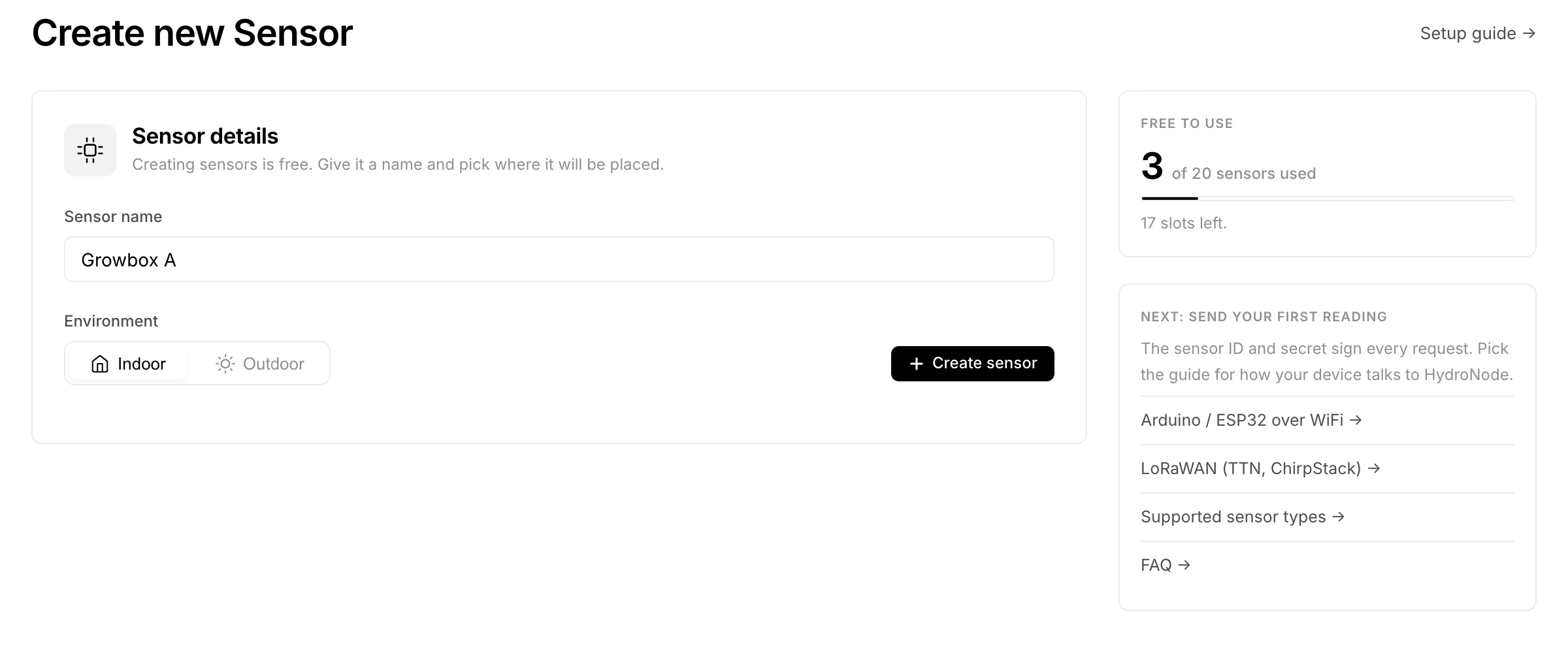
- 1Start on the DashboardPress Create sensor in the head of the device list.
- 2Name it and pick the environmentGive it a name such as
Growbox A. Choose Indoor for rooms, grow boxes and greenhouses, Outdoor for anything outside. The environment decides what counts as normal, and only outdoor sensors can become a station on the map. - 3Keep the credentialsAfter Create sensor HydroNode shows the Sensor ID and the Secret. You find both again later on the sensor page under Settings → Connection.
Choose your integration method
Pick the path that fits your hardware. All of them end up in the same place: the same charts, anomaly checks, alerts, apps and Home Assistant integration.
Check that the values arrive
Open the sensor from the device list on the Dashboard and press the ` key. The device console opens at the bottom of the page and shows every request the moment it arrives, accepted or rejected, with the reason. The Rejected filter shows only the requests HydroNode refused.
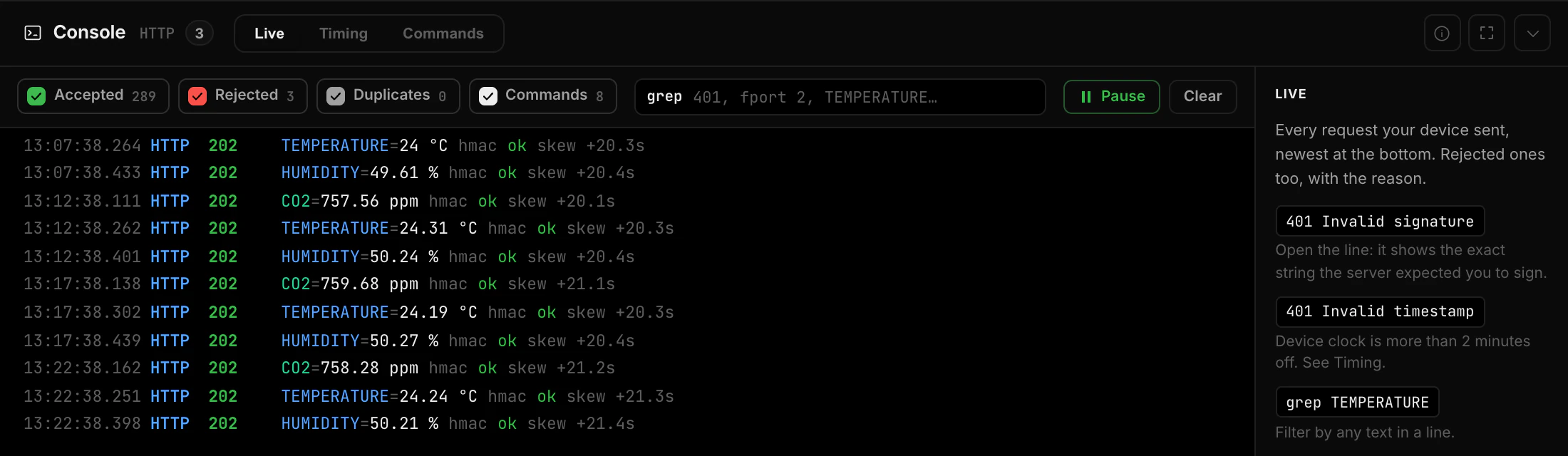
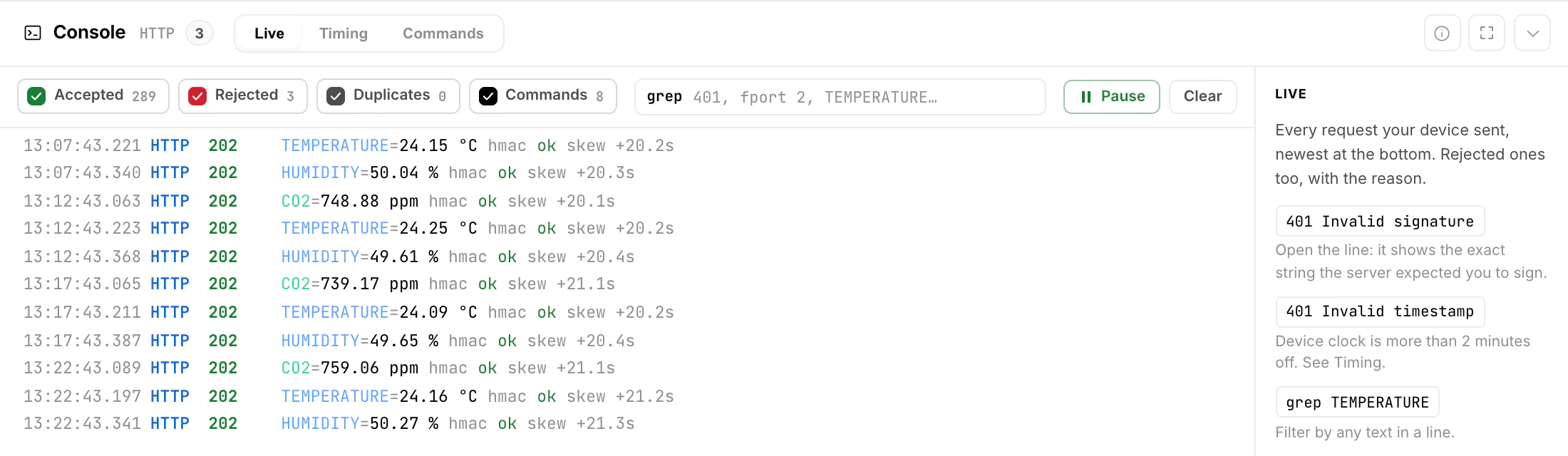
The first value is enough for the chart and your own limits. The learned normal range needs about 20 readings over six hours, and the daily pattern a few days. More in the Device Console chapter.
A sensor is not automatically a public station
Every device starts as a private sensor. A station is an optional extra for a physical outdoor installation, such as a garden, a rooftop or a weather station. It adds a location and, if you like, a place on the public map under Stations.