Arduino Library
Send readings from your own sketch over WiFi with the HydroNode Arduino library. It takes care of WiFi, time, TLS and signing every request. Works on every ESP32 and the ESP8266.
Get the Sensor ID and Secret
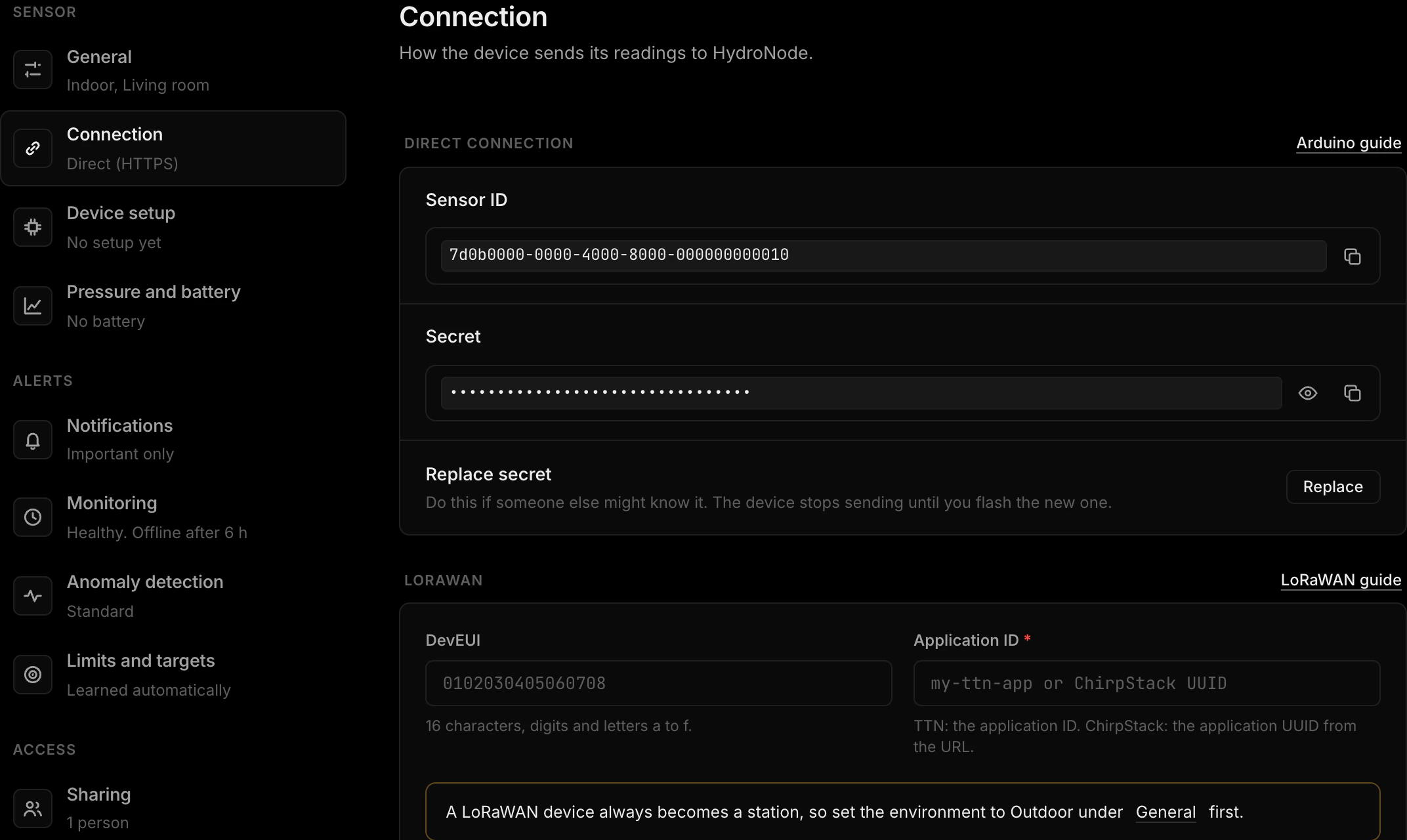
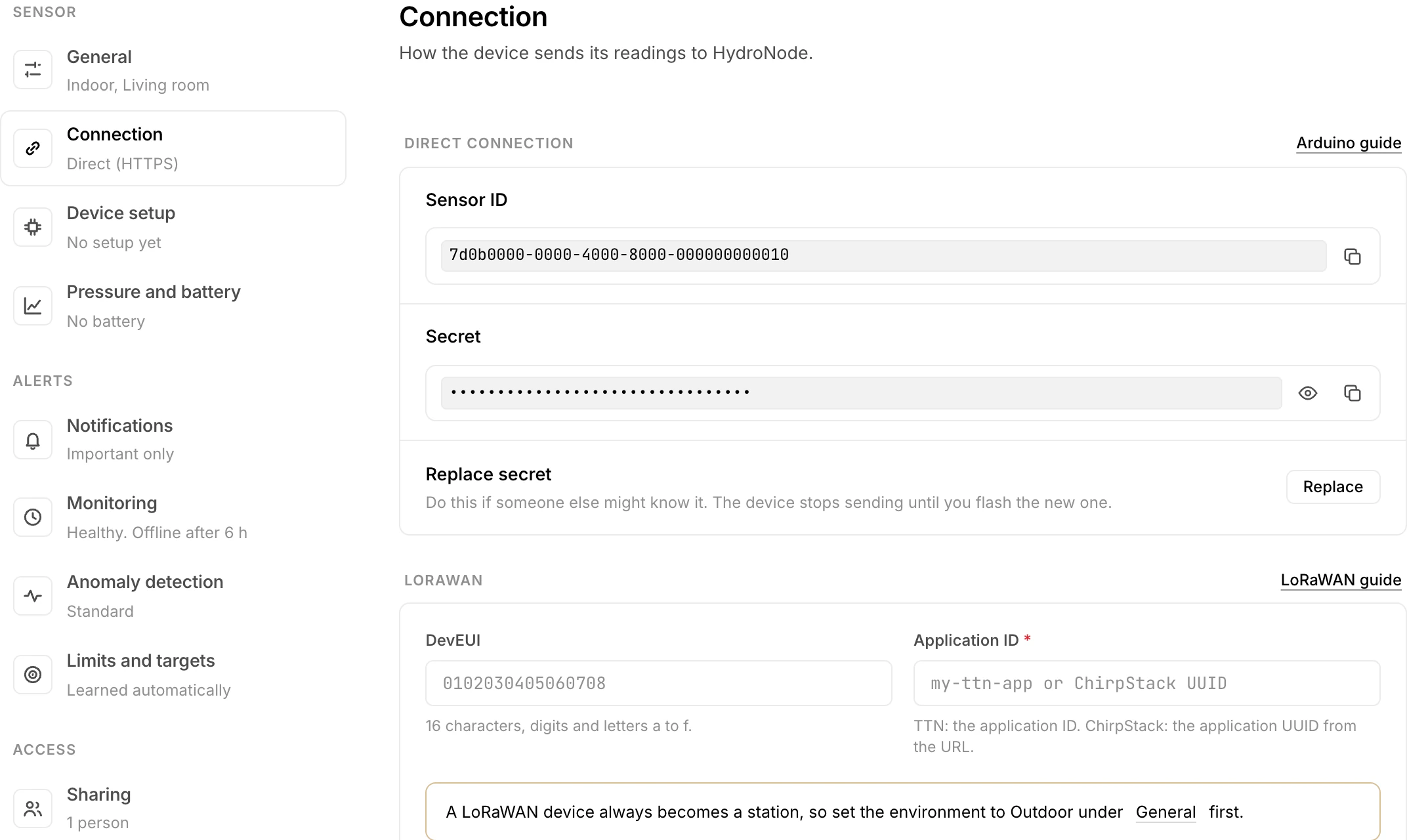
The library signs every request with your sensor's credentials. Create the sensor first (Integration Guide, step 01), then copy them:
- 1Open the sensorOn the Dashboard, click the sensor's name in the device list.
- 2Open its settingsPress Settings at the top right, then Connection on the left.
- 3Copy bothUnder Direct connection you find the Sensor ID and the Secret, each with a copy button.
Install the library
The library is in the official Arduino Library Manager. Open Tools → Manage Libraries, search for HydroNode-Library and install it. The IDE offers to install the dependencies along with it: say yes. For reference, these are:
ArduinoJsonArduinoHttpClientWiFiManagerIn PlatformIO, pin the Git tag. The registry does not always carry the newest version right away:
[env:esp32dev]
platform = espressif32
board = esp32dev
framework = arduino
monitor_speed = 115200
lib_deps =
  https://github.com/TexhFexLabs/HydroNode-Library.git#1.8.0
Or clone the repository into your libraries/ folder and install the dependencies above by hand:
git clone https://github.com/TexhFexLabs/HydroNode-Library.git ~/Arduino/libraries/HydroNodeA complete .ino sketch
Fill in YOUR_WIFI_SSID, YOUR_WIFI_PASSWORD, your Sensor ID and your Secret, then upload. sendValues() sends every value of one round in a single signed request, stamped with the time it was measured. That saves one connection per value, which is several seconds on an ESP8266. The library fetches the time itself and refreshes it every 30 minutes.
#include <HydroNode.h>

const char* WIFI_SSID     = "YOUR_WIFI_SSID";
const char* WIFI_PASSWORD = "YOUR_WIFI_PASSWORD";

// Settings > Connection on the sensor page
const char* SENSOR_ID  = "YOUR_SENSOR_ID";
const char* SECRET_KEY = "YOUR_SECRET";

HydroNode hydro(SENSOR_ID, SECRET_KEY);

// Command "pump" with type UINT32 from the HydroNode app
void pumpCallback(uint32_t ms) {
  if (ms > 10000) ms = 10000;  // never trust a network value blindly
  Serial.printf("Pump for %u ms\n", ms);
  // run the pump for ms milliseconds
}

void setup() {
  Serial.begin(115200);
  hydro.setDebug(Serial);  // optional: prints every request and answer

  while (!hydro.connectWiFi(WIFI_SSID, WIFI_PASSWORD)) {
    Serial.println("WiFi failed, retrying");
  }
  hydro.begin();  // fetches the time, needed for every signature

  hydro.onUInt32("pump", pumpCallback);
}

void loop() {
  // Replace with real readings from your hardware
  HydroNodeValue reading[] = {
    {"TEMPERATURE", 22.4},  // °C
    {"HUMIDITY",    65.2},  // %
  };
  int status = hydro.sendValues(reading, 2);
  Serial.printf("HydroNode answered %d\n", status);

  delay(60000);  // one round per minute
}
HydroNode accepts one value per measurement type every 10 seconds, and up to 64 values in one request. sendValue("TEMPERATURE", 22.4) still works for a single value.
Check that the values arrive
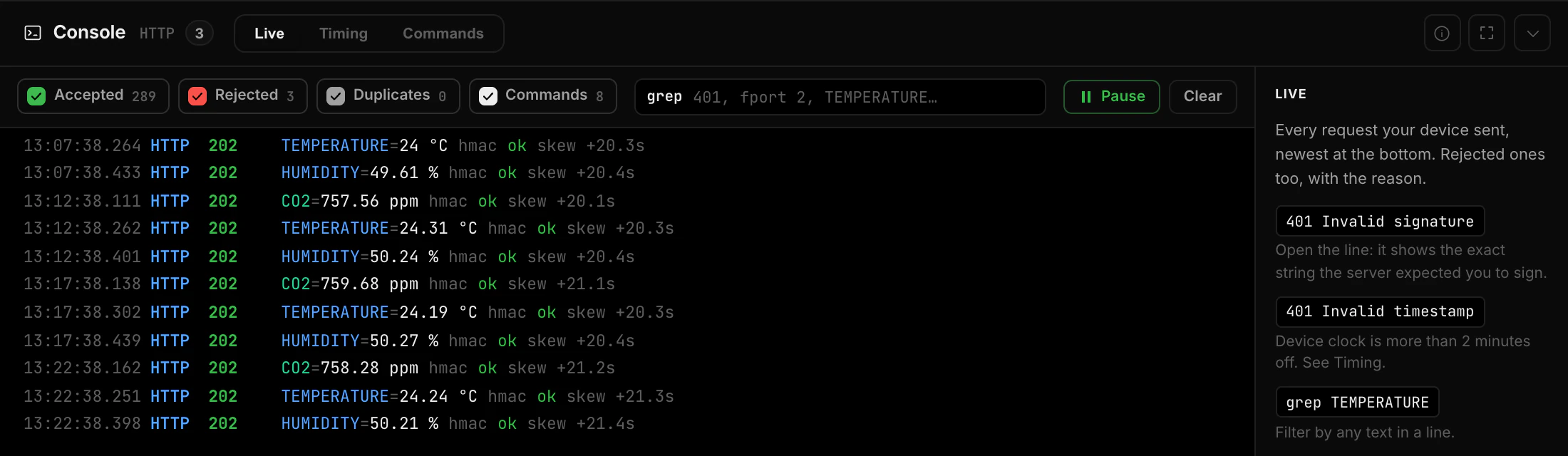
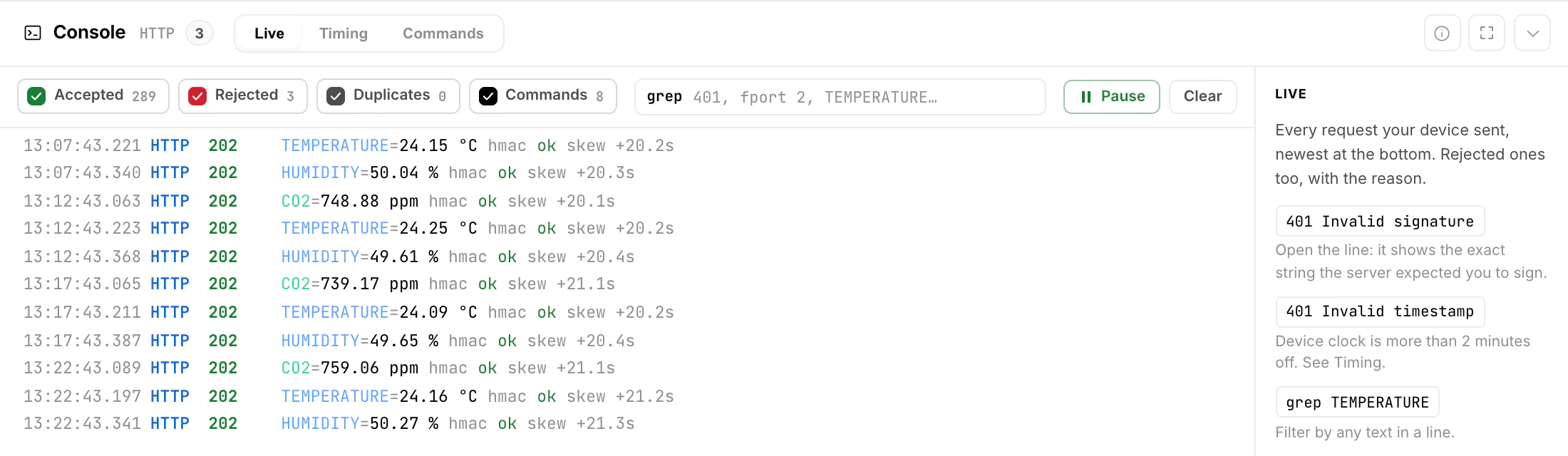
Open the serial monitor at 115200 baud. HydroNode answered 202 means accepted. Then open the sensor page in HydroNode and press the ` key. The device console shows every request the moment it arrives, with the signature check and how far the device clock is off.
| Answer | Meaning | What to do |
|---|---|---|
202 | Accepted | Nothing, all good. |
401 | Signature or time wrong | Check the Sensor ID and Secret. The console names the exact reason. |
429 | Too fast | Send at most one value per measurement type every 10 seconds. |
-1 | No WiFi | Check the network name, password and signal. |
-2 | No time | Allow UDP port 123 (NTP) on your network. |
-3 | Connection failed | TLS or network error. The library tries again with the next round. |
-4 | Invalid type name | Use upper case: TEMPERATURE, not temperature. |
-5 | Invalid value | The value is NaN or infinite. Check the sensor reading. |
A rejected request shows up in red in the console, with the exact reason. The Rejected filter shows only those.
Send commands to the device
A command has a name, a value type and a value. On the device you register one callback per name and type. One name can have several types, for example relay1 true and relay1 1400.
hydro.onBool(name, fn)hydro.onInt32(name, fn)hydro.onUInt32(name, fn)hydro.onInt64(name, fn)hydro.onUInt64(name, fn)hydro.onString(name, fn)// App: name "lamp", type BOOL, value true
hydro.onBool("lamp", [](bool on) {
digitalWrite(LAMP_PIN, on ? HIGH : LOW);
});
// Same name, type UINT32: "lamp 1400" lights it for 1.4 s
hydro.onUInt32("lamp", [](uint32_t ms) {
ms = min(ms, (uint32_t)10000); // local safety limit
digitalWrite(LAMP_PIN, HIGH);
delay(ms);
digitalWrite(LAMP_PIN, LOW);
});
// App: name "display", type STRING, value "Hello"
hydro.onString("display", [](const String& text) {
lcd.print(text);
});- 1Send itOn the sensor page press Send command and fill in name, type and value. Or type
lamp:bool truein the Commands tab of the console. - 2Wait for the next roundCommands travel with the answer to the next value the device sends. With one round per minute, that takes up to a minute.
- 3Read the statusConfirmed means the device has a matching callback and started it. Declined names the reason and the callback never runs: No handler on the device when the name is unknown, Type does not match when the callback expects another type, Value not accepted when the value does not fit, for example
-1forUINT32.
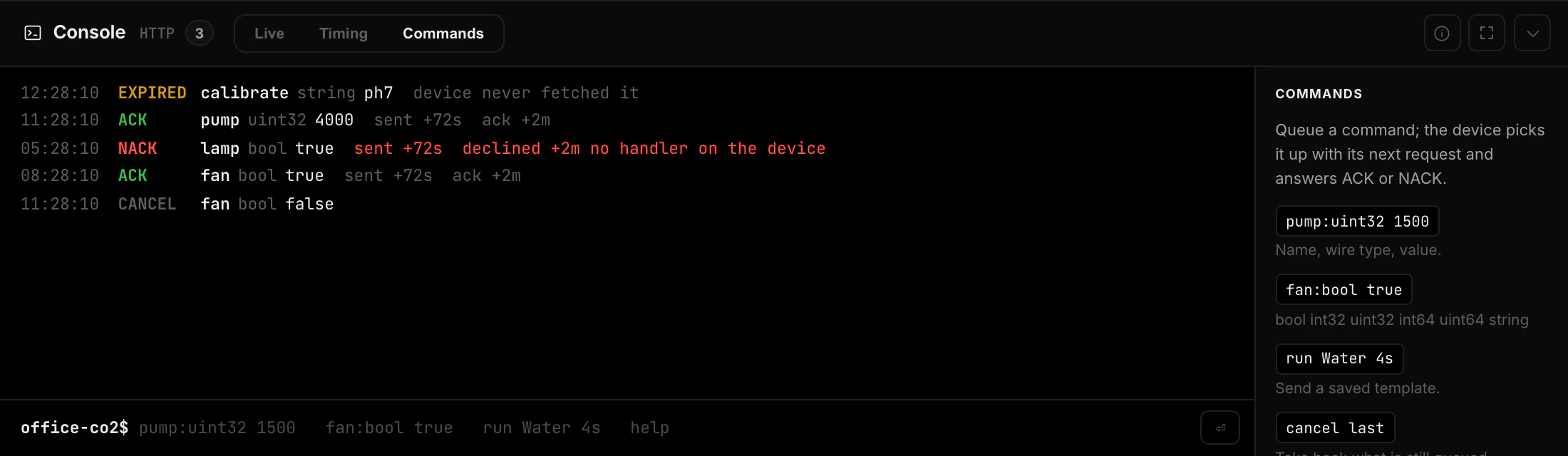
Hex like 0x20124 is accepted for the integer types and arrives as the number 131364. There is no float type: send a whole number in a fixed unit, for example tenths of a degree. Commands are delivered at most once. If a response is lost, send the command again.
Protect a battery device
From library 1.8.0, HydroNodeBatteryGuard looks after the battery the same way HydroNode firmware does: it sends less often below Save, turns WiFi and outputs off below Radio off, sleeps an hour at a time below Standby and runs normally again from Resume. Before it goes quiet it sends one last round, so HydroNode shows Low battery standby instead of Offline.
With onSettings() the sketch also takes a new send interval and new thresholds that you change in HydroNode under Settings → Pressure and battery → On the device. The example PowerThresholds in the library shows the whole round, including deep sleep. Every threshold and rule is in Battery and Power.
Captive portal setup via WiFiManager
The example WiFiManagerSetup uses WiFiManager instead of a hardcoded network. On first boot the device opens an access point named HydroNode-Setup-XXXX (the last four characters of your Sensor ID, from hydro.getApName()). Connect to it from a phone or laptop, and a captive portal asks for your network. The device saves it to flash and restarts into normal operation. No password is compiled into the firmware.
All examples are in the library's examples/ folder on GitHub.
Make an outdoor sensor a station
If this board is part of an outdoor weather or environmental installation, it can become a station without changing the sketch or switching to LoRaWAN. A station has a location and can appear on the public map.
- 1Save the sensor as OutdoorOn the sensor page open Settings → General, set Environment to Outdoor and save. Indoor sensors cannot be stations.
- 2Turn on Use as a stationThe switch sits in the Station group of the same section. The Sensor ID, the Secret and every reading stay as they are.
- 3Set the locationLocation and public map opens the station settings. Enter the location, and turn on Show on the public map only if you want others to see it.
TEMPERATURE, is case-sensitive. Always use the exact uppercase key. The library refuses names that are not upper case letters, digits and underscores (-4), and a typo like TEMPERATUR creates a new measurement instead of an error. See every type on the Sensor Types reference.