LoRaWAN Integration
Connect any LoRaWAN sensor to HydroNode with a single HTTPS webhook. Works with The Things Network, ChirpStack, and Helium. No AWS account required.
One unified webhook endpoint
HydroNode exposes a single webhook URL that auto-detects whether the incoming uplink is from TTN (v3) or ChirpStack (v4/v3). There are no separate endpoints and no per-network configuration.
POST https://hydronode.tech/api/webhook/lorawan/uplink/{webhookToken}wht_…) in the URL proves the request belongs to your account. You have one per account. It never expires unless you press Rotate Token in your profile. Before you start
- 1A sensor exists in HydroNodePress Create sensor on the Dashboard, give it a name and press Create sensor again. Every account can have 20 sensors for free. The Sensor ID and Secret it shows are for WiFi devices. A LoRaWAN device does not need them.
- 2The sensor is OutdoorA LoRaWAN device always becomes a station, and only outdoor sensors can be stations. Pick Outdoor when you create the sensor. For an existing sensor, open Settings, then General, set Environment to Outdoor and save.
- 3The physical DevEUI is at hand16 hex characters printed on the device, for example
a840411b2182cd44. - 4You know your payload layoutWhich fPort carries which channels and at which byte offsets (see Decode payloads).
Pick your network server
The steps that differ between networks have their own page: registering the device, the webhook for uplinks and the setup for downlinks.
Bind the device to your sensor
This happens in the HydroNode web app. Open your sensor, press Settings at the top right and open Connection. The LoRaWAN group links the device.
- 1Check that the sensor is OutdoorIf it is still Indoor, the LoRaWAN group shows a warning with a link to General, and Link device stays disabled. Set the environment to Outdoor there, save, and come back.
- 2Enter the DevEUI16 characters, digits and letters a to f. Use the same DevEUI you registered in your network server.
- 3Enter the Application IDTTN: the application ID. ChirpStack: the application UUID from the URL. The field is required and must match exactly, otherwise uplinks are rejected as an unknown device.
- 4Press Link deviceHydroNode makes the sensor a station and shows the Webhook address in the same group. The button now reads Save, for later changes, and Unlink appears next to it.
- 5Copy the webhook addressPress the eye icon to show it, or the copy button to copy it right away. Your profile shows the same address as Webhook URL. You paste it into your network server, as the page for your network server describes.
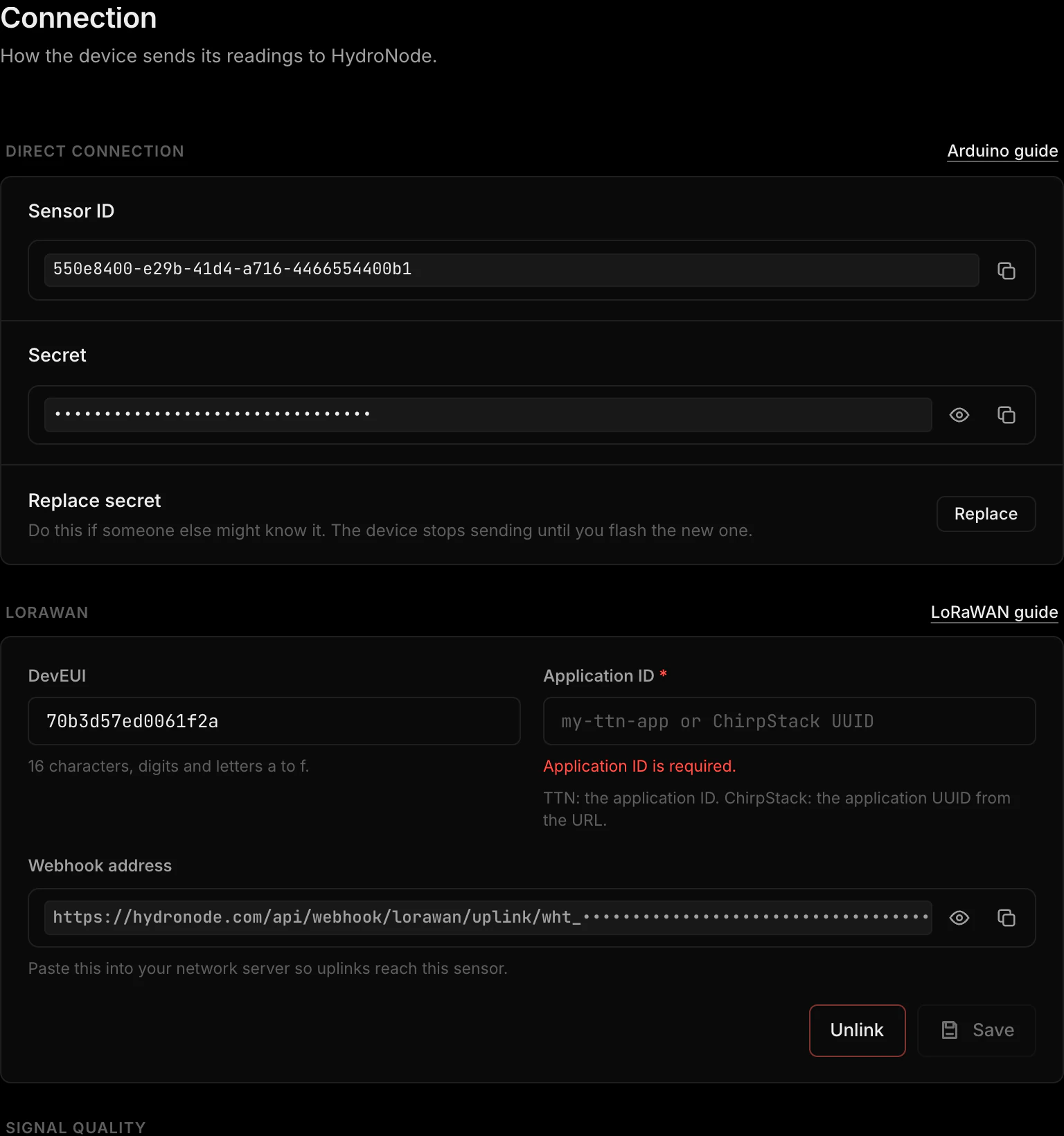
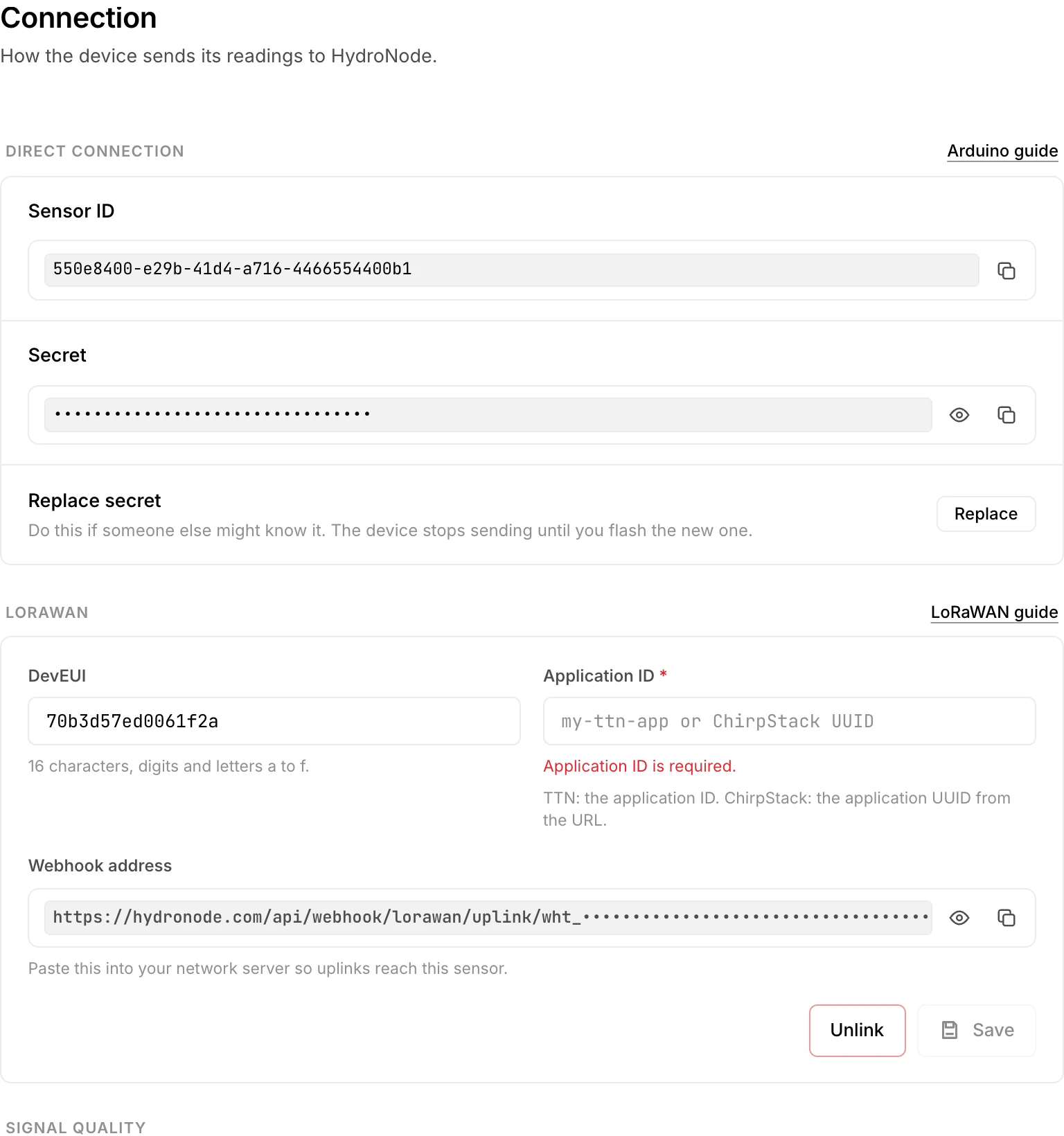
Once the device is linked, two more parts appear below. Signal quality has the switch Record signal quality: it stores RSSI and SNR of the gateway that heard each uplink best as two more values on the sensor chart. It starts with the next uplink and never shows on the station. Below that sits Payload formats (fPort), see Decode payloads.
Configure fPort decoding
Each fPort carries a fixed set of channels packed into the payload bytes. You tell HydroNode how to read them in the card Payload formats (fPort), at the bottom of Settings, Connection. The card appears once the device is linked. See Sensor Types for the supported types.
- 1Press Add fPortEnter the fPort your firmware sends on, 1 to 223, and an optional Description.
- 2Add one channel per valuePress Add Channel and pick a Sensor Type. The presets fill in bytes, encoding, scale and unit. Adjust Bytes, Encoding, Byte Order, Scale Factor, Offset, Channel Name and Unit if needed. Choose Custom for a type not in the list.
- 3Order the channelsChannels decode top to bottom with no gaps. Use the up and down arrows so the order matches the bytes your device sends.
- 4Try it before savingTest this layout decodes a payload you paste against the fields above, on the server, without saving anything. Copy a real payload from your network server.
- 5Press CreateRepeat for every fPort your device uses. Edit and Delete sit on each saved fPort. Test a payload below the list checks a payload against all saved fPorts at once.
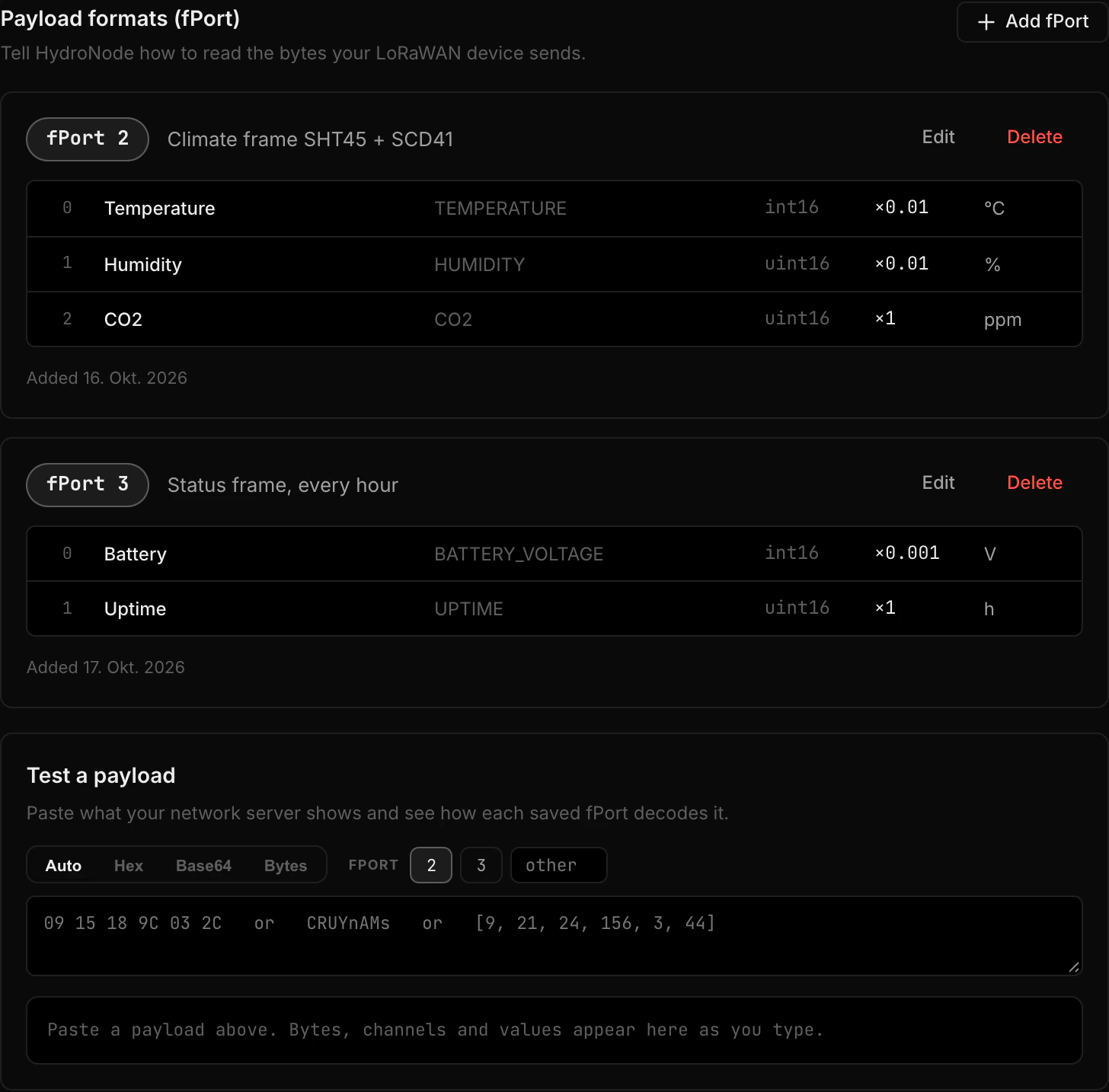
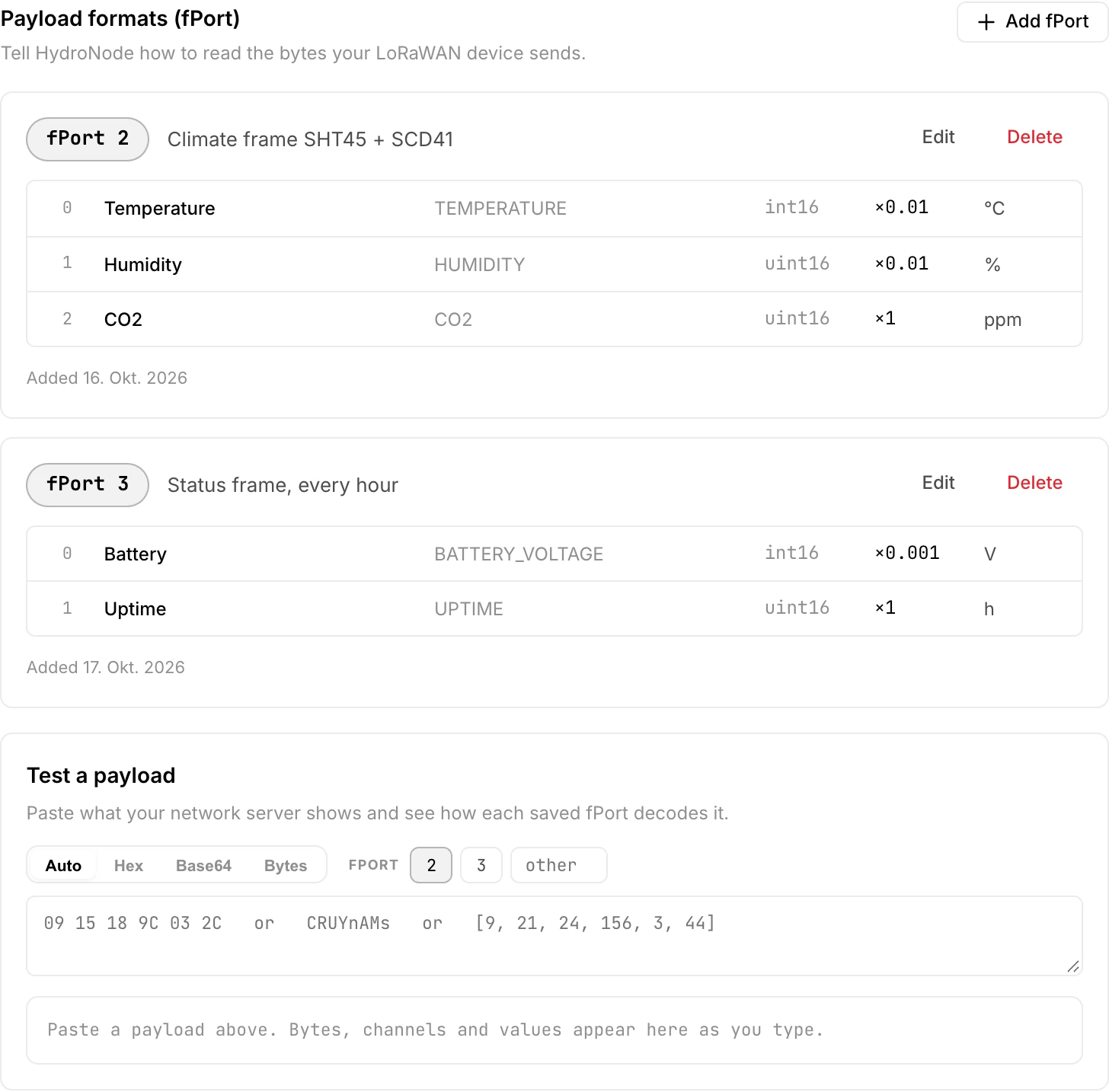
How a channel is decoded
Every channel reads a fixed number of bytes and turns them into one physical value:
value = raw × scaleFactor + offset| Field | Accepts | When you need it |
|---|---|---|
| Bytes | 1, 2, 3 or 4 | 1 byte suits battery percent, wind direction as an octant or a status flag. 4 bytes suit counters and high resolution values. |
| Encoding | Signed or unsigned | Signed reads the value as two's complement over the configured width, so a temperature can go below zero. |
| Byte Order | Big endian or little endian | Big endian is the default and is what most devices send. Milesight and several other vendors pack the least significant byte first; pick little endian for those instead of changing your firmware. |
| Scale Factor | Any number above zero | Converts the raw integer into the physical unit. A temperature sent in hundredths of a degree uses 0.01. |
| Offset | Any number, 0 by default | Added after scaling. Devices that bias their reading to avoid negative numbers need it: a device sending raw × 0.1 − 40 takes scale 0.1 and offset −40. |
| Missing value (raw) | A raw integer, empty by default | Some devices send a fixed raw number when a sensor has no reading. Enter it here and HydroNode stores nothing for that channel instead of a wrong value. |
no fPort configuration. Add the fPort before the device sends live data.Native payload formats (auto-detected)
No transformation needed. HydroNode reads each network's native JSON and picks the format from its shape: end_device_ids means The Things Stack v3, deviceInfo or a top level devEui means ChirpStack v4. Helium is not a third format; its console runs on ChirpStack and sends the ChirpStack event. Anything else is rejected with 400 rather than guessed at.
Repeat deliveries are recognized by deduplicationId when the network server sends one, and by the frame counter otherwise. If a payload carries neither, deduplication is skipped for that uplink: a duplicate reading can be removed later, a dropped one cannot be recovered.
Sample payloads are on the pages for The Things Network and ChirpStack.
Confirm it works
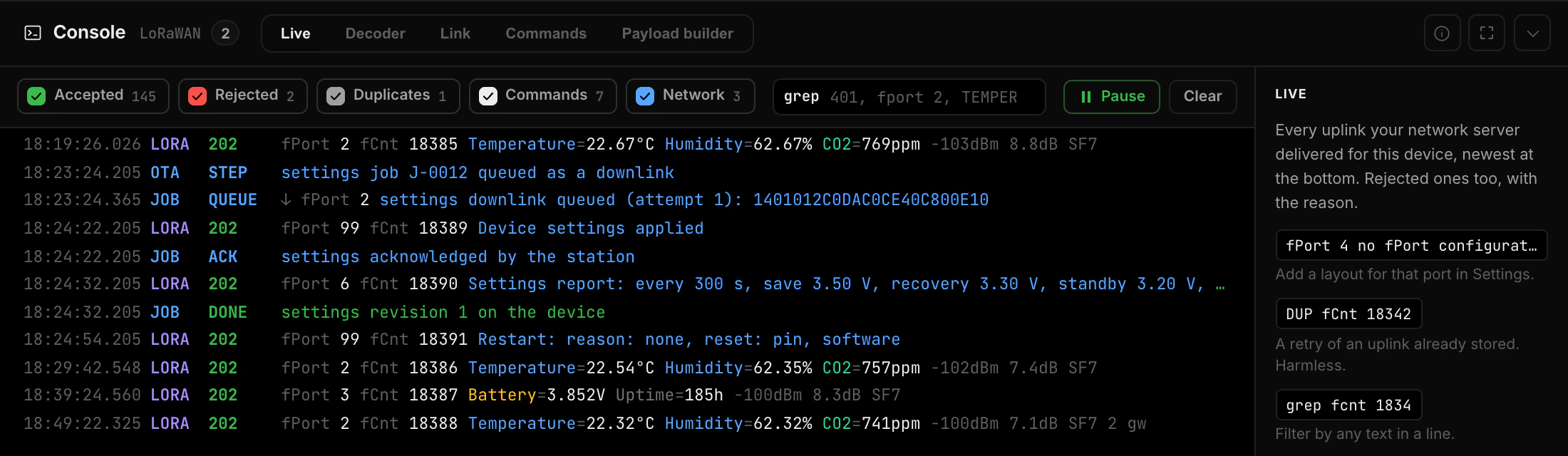
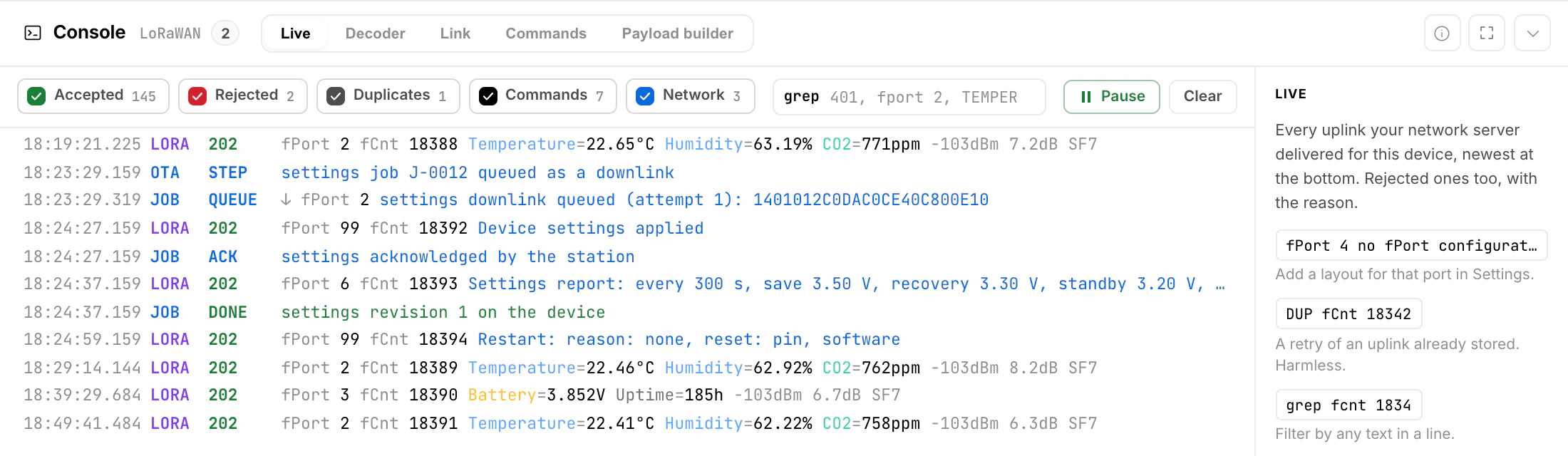
Send a test uplink: a real transmission, or Simulate uplink on the device page in TTN. Then open the sensor in HydroNode and open its console. Click the Console bar at the bottom of the page or press the backtick key (`). The Live tab lists every uplink your network server delivered, with fPort, frame counter, decoded values, RSSI and SNR. Rejected uplinks show up too, with the reason. Click a line for every detail.
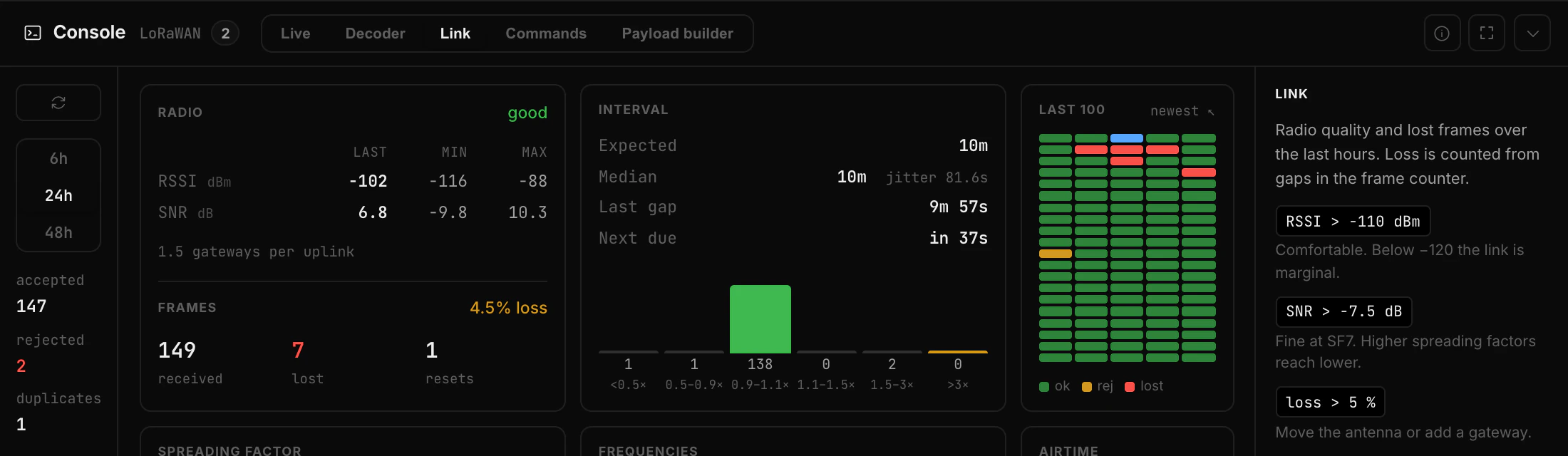
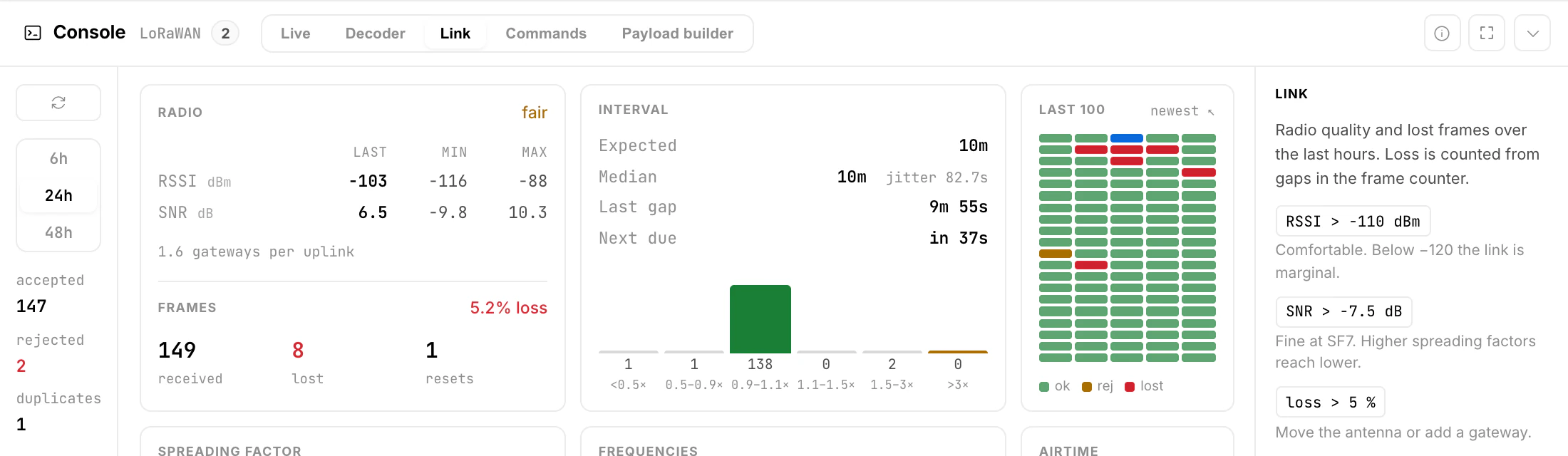
LoRaWAN sensors get more tabs. Decoder shows which bytes became which value. Link shows radio quality, received and lost frames, the spreading factor and frequency mix, airtime against the TTN fair use limit and the gateways that heard the device. Payload builder turns real values into the bytes your firmware must send. Details are in the Device Console docs.
A 202 means the values are stored, not merely received. HydroNode waits for its own storage to confirm them before answering, so a 202 is a real delivery receipt. If storage is unavailable you get 503 instead and your network server should redeliver. Repeated deliveries of the same frame are recognized and stored once, so retrying is always safe.
| Code | Meaning | What to do |
|---|---|---|
| 202 | Uplink stored | Nothing, success |
| 204 | A TTN message without an uplink, for example a location update | Nothing. There is nothing to store. |
| 400 | Payload error: no fPort configuration for fPort … | Add a layout for that fPort (Decode payloads) |
| 400 | Payload error | The bytes do not fit the layout. Check bytes and channel order with the Decoder tab of the console. |
| 400 | Missing payload data, Invalid fPort | The message carried no usable payload. Check what the device sends. |
| 400 | Unrecognised payload format | The JSON is neither TTN nor ChirpStack. Set the format to JSON in your network server. |
| 401 | Unauthorized | The token in the URL is wrong or was rotated. Copy the Webhook URL again from your profile. |
| 404 | Unknown device | Link the DevEUI to a sensor in this account and check the Application ID (Bind in HydroNode) |
| 429 | Too many requests | You are sending faster than the limit allows. Honor Retry-After and slow down. A normal device reports every few minutes and never reaches this. |
| 503 | Upstream unavailable, retry | HydroNode could not store the values and is asking for the uplink again. Configure your network server to retry. The same uplink is accepted on the next delivery and duplicates are filtered out. |
| 500 | Internal error | Something failed on the HydroNode side. Let your network server retry. |
202 arrives and a value shows up on the sensor, the integration is live. Every other device in the same application starts flowing as soon as you link its DevEUI to a sensor.Send to your devices
HydroNode can also talk back to your LoRaWAN devices: new send intervals and battery thresholds for a station, raw bytes on any fPort, and ready commands for stations. Each downlink waits at your network server and leaves with the next uplink of the device.
Downlinks What you can send, who can send it and how to follow each downlink until the device confirms it.