Job history
Every change of the last 30 days with the result for each device, and the message you get when an update is done.
Every change of the last 30 days
Open a project and press Job history above its sensor list. The history opens as a window over the project page, and the address bar gets ?history=1, so you can bookmark it. Close it with the button in its corner or Esc.
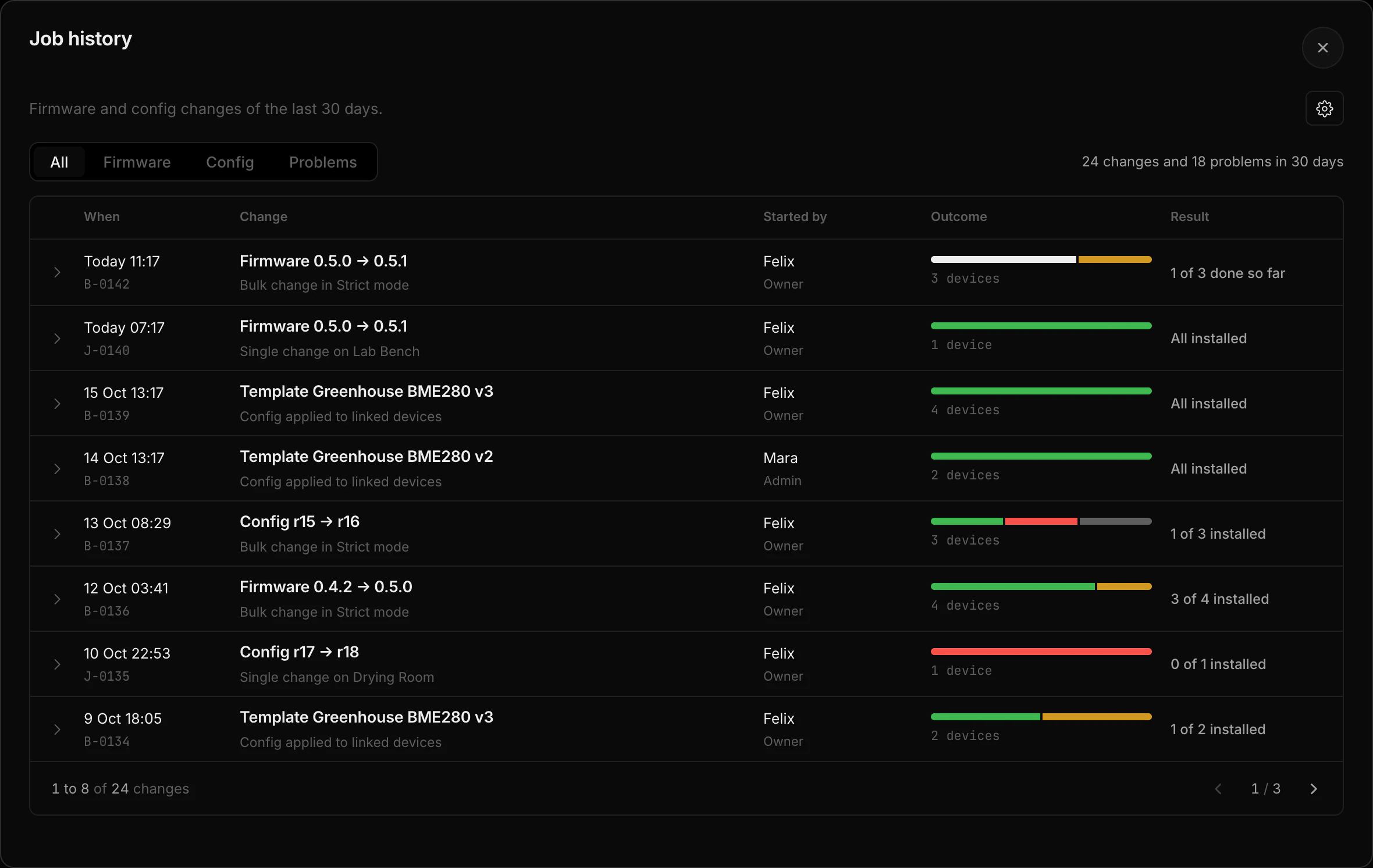
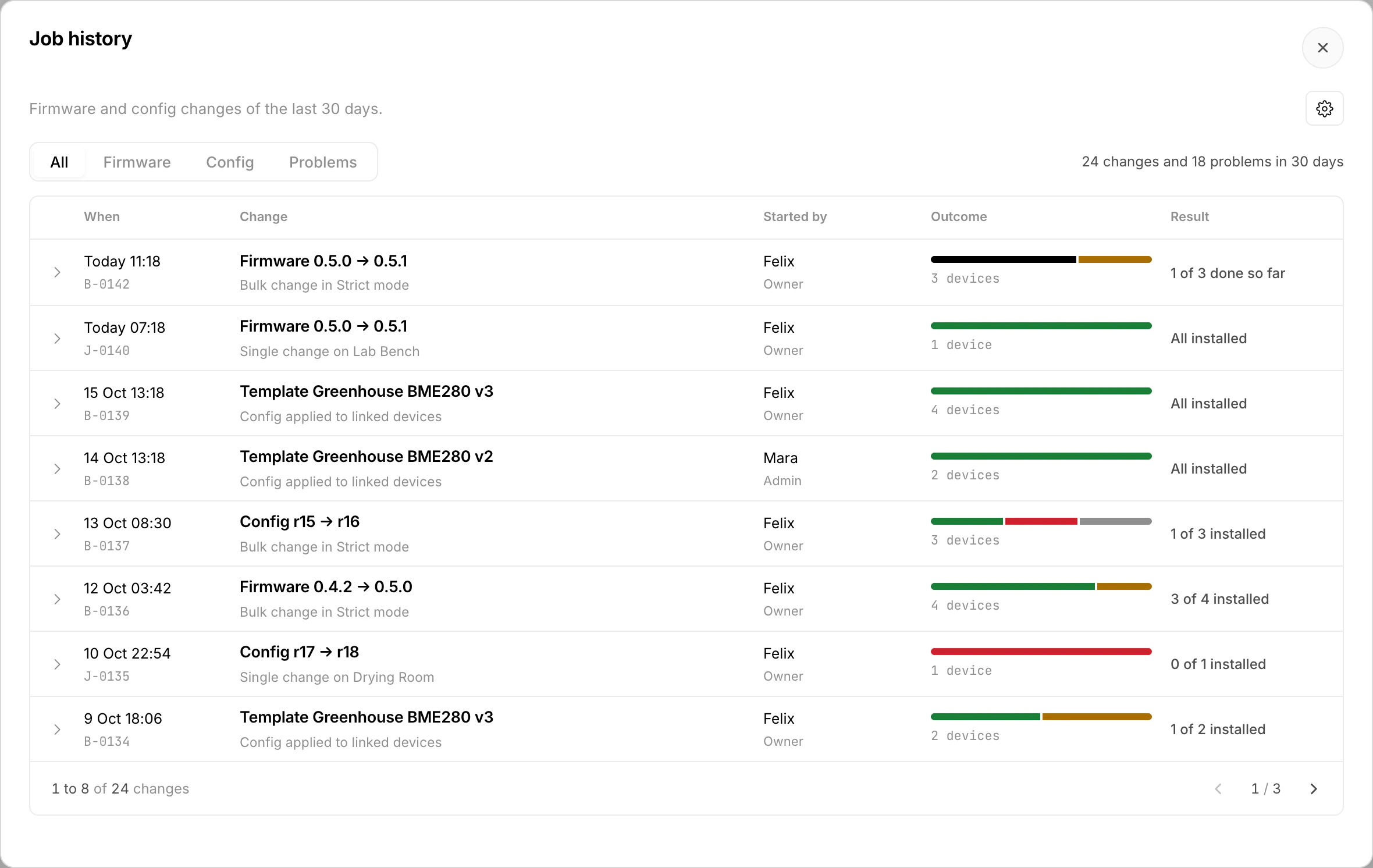
Each change has a number: J-0140 for a change to one device, B-0142 for a bulk change or a template apply. Filter by All, Firmware, Config or Problems. A row shows when, what, who started it (Owner or Admin share), a bar with the outcome of every device and the result, for example All installed or 2 of 3 installed.
Click a row to see every device with its change (0.5.0 → 0.5.1, r13 → r14), status and reason, for example Verified Strict in 41 s or Offered 3 times, not taken. The device name opens its device drawer. Running changes update live.
Default verify mode
The gear in the head of the window opens Update settings with your Default verify mode: Strict or Lenient. Every new change uses it unless you pick another mode for that change or for one device. Strict waits for an accepted signed reading and every configured sensor. Lenient is happy with the first accepted signed reading. The gear appears once you own at least one sensor. People with Can manage follow the owner's default.
Told when an update is done
Whoever started a change gets one push on iPhone and Android when all its devices are done: Update finished, for example "3 of 3 devices installed firmware 0.8.0.", or Update failed when none made it. A rollback is reported at once, for example "Tank A rolled back". Tapping it opens the sensor, or the sensor list for a change with several devices. On Android the messages have their own channel, Device updates, which you can mute in the system settings. The apps need a current version; older ones never receive these messages.