Projects and data pools
A project holds sensors that belong together: a greenhouse, a garden, a building. Inside it, data pools group the data points. Most accounts need one project with one pool, and that is what every account starts with: My project with the pool Main.
Your projects at a glance
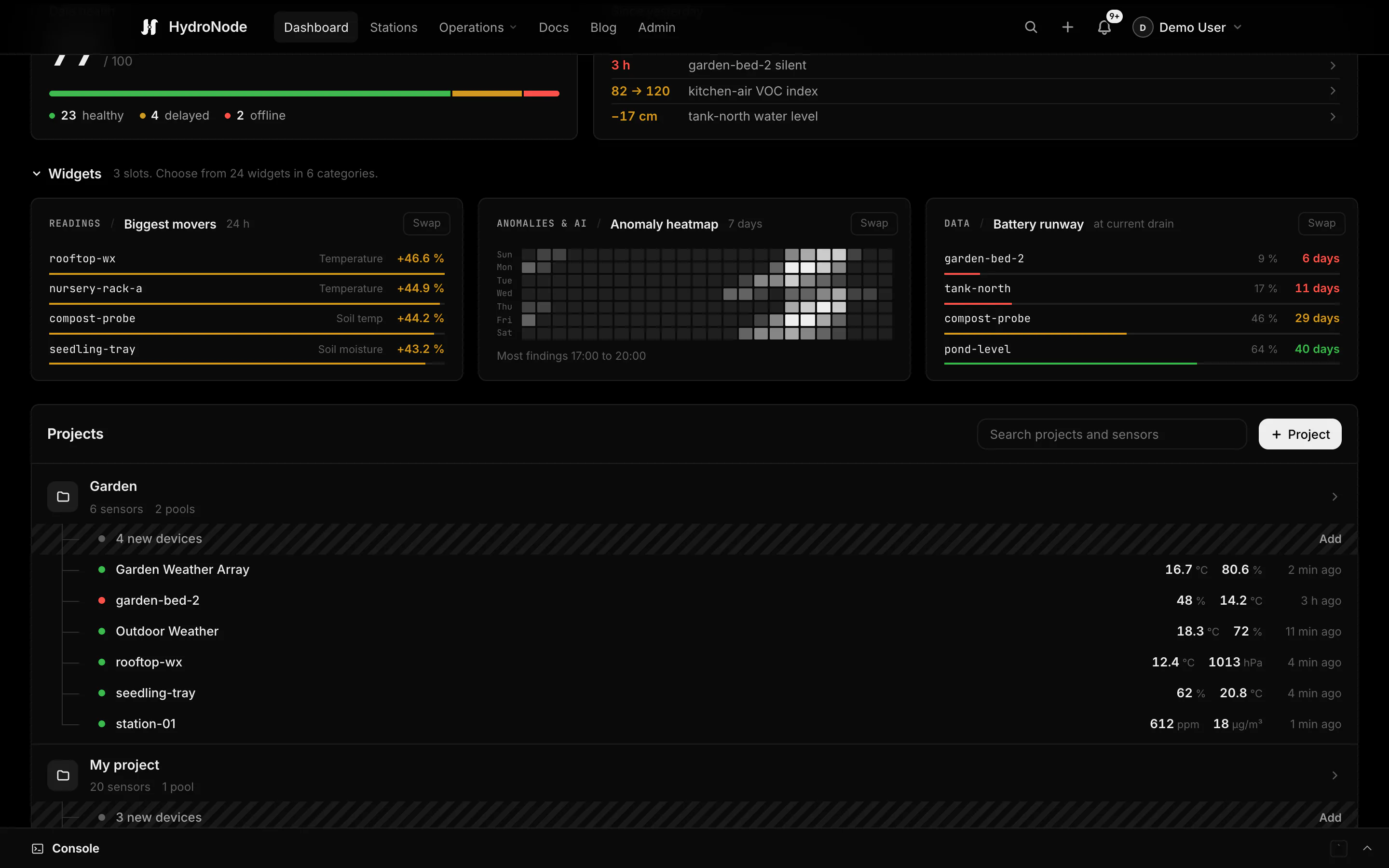
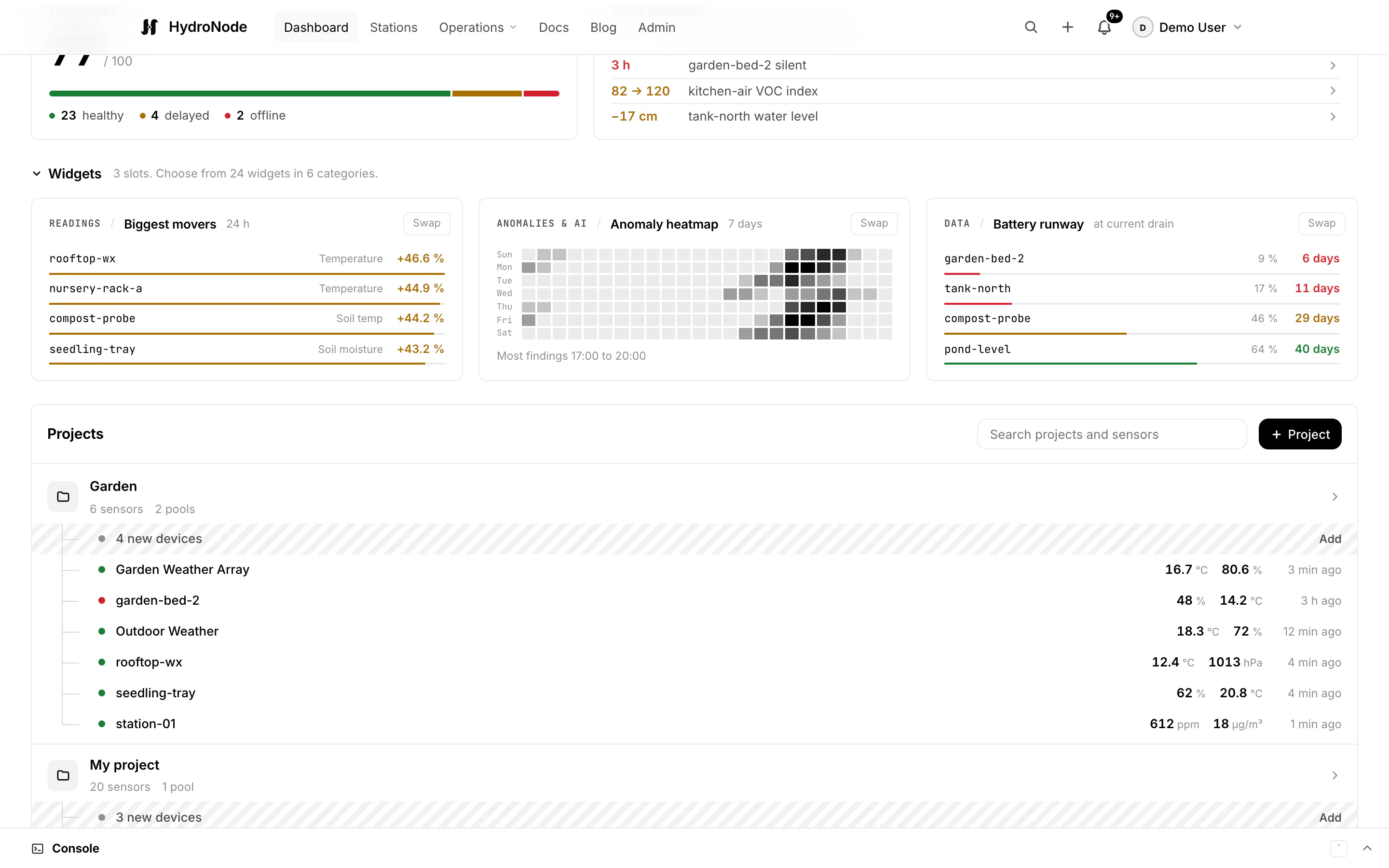
Dashboard in the top navigation shows the health of your data, your widgets and then your projects with their pools. Click a project to open its page. Sensors someone shared with you directly, outside a project, sit under Shared with you. Hover Dashboard (or press the arrow key on it) to jump straight to a project.
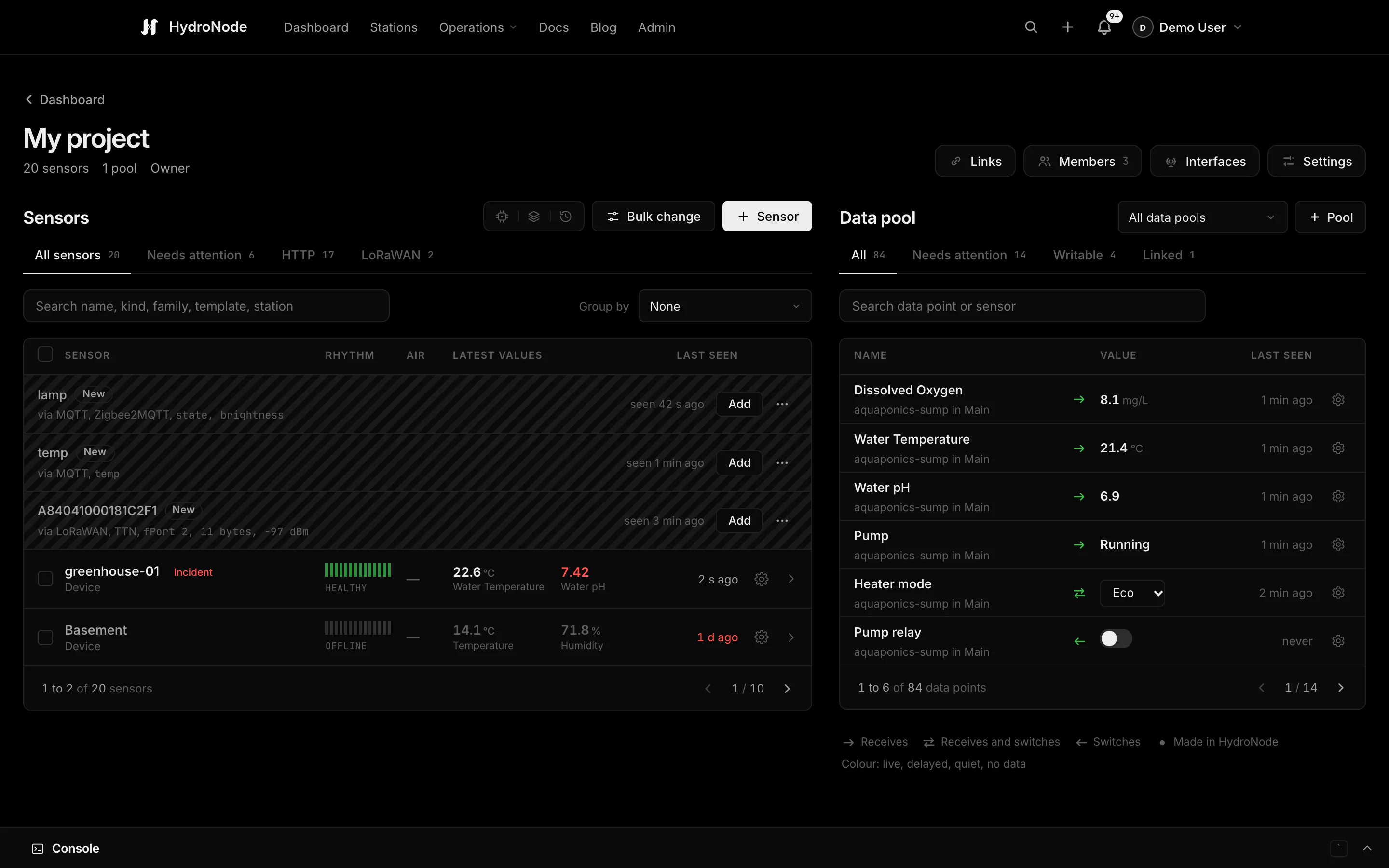
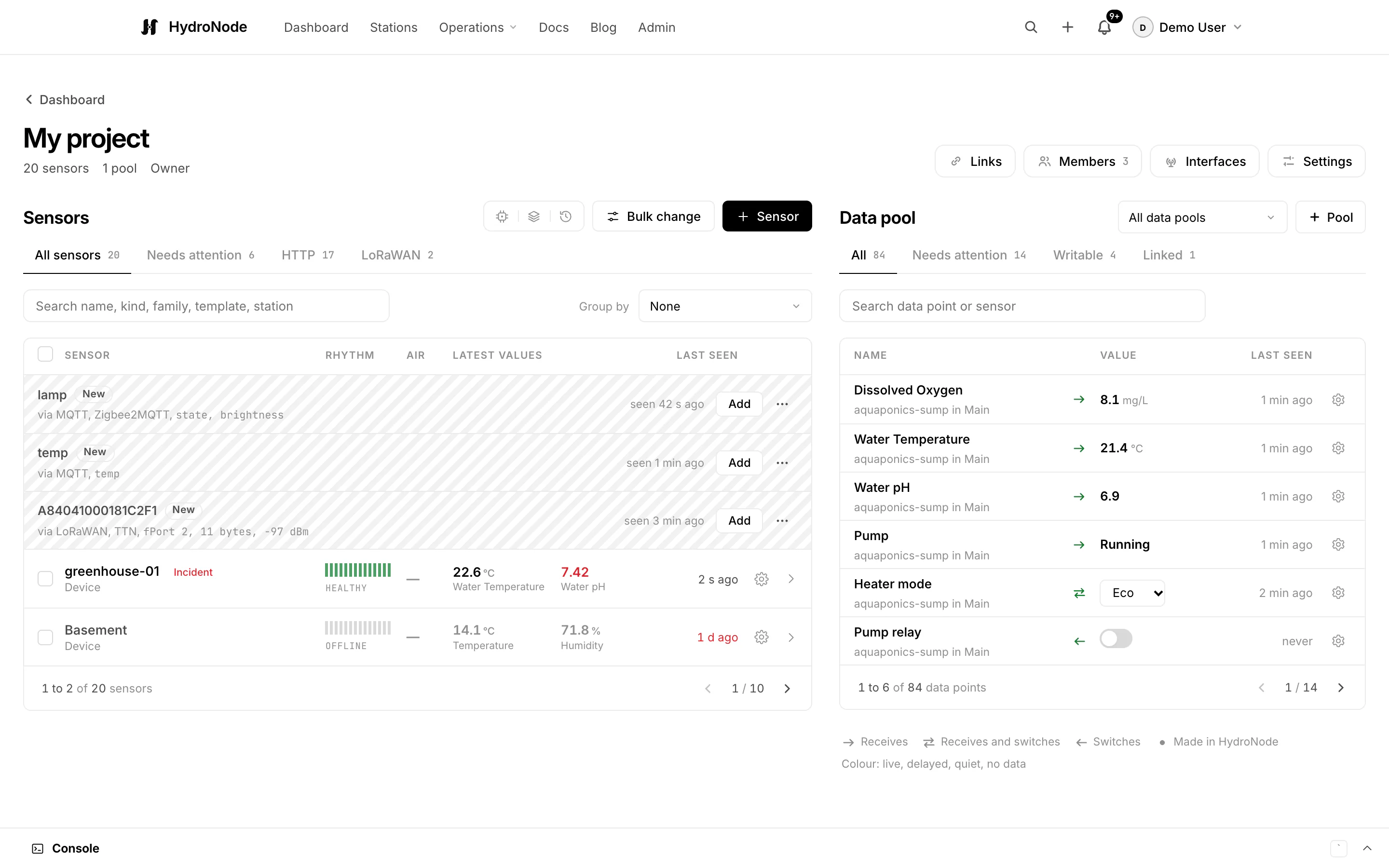
Sensors on the left, the data pool on the right
The project page lists its sensors with their state, readings and the tools for devices: Device builder, Templates and Job history. The right column is the Data pool: every data point of the pool with its latest value, plus the ones linked in from other pools. Pick another pool or All data pools above it. The buttons in the head open Links, Members, Interfaces and Settings; you see the last three with Manage in the project.
The arrow in front of a value tells its direction, its colour tells whether it is live, delayed, quiet or has no data yet:
| Arrow | Means |
|---|---|
| Receives | The value comes from the device, MQTT, JSON push, LoRaWAN or external data. |
| Receives and switches | It comes from the device, and HydroNode can also set it (a command or an MQTT publish). |
| Switches | HydroNode only sends it, for example an actuator without a reported state. |
| Made in HydroNode | Calculated, set by hand or a reference of a virtual sensor. |
The console of the project page sits folded at the bottom, like on the Dashboard. It shows only the sensors of this project, see Device console.
One button for everything new
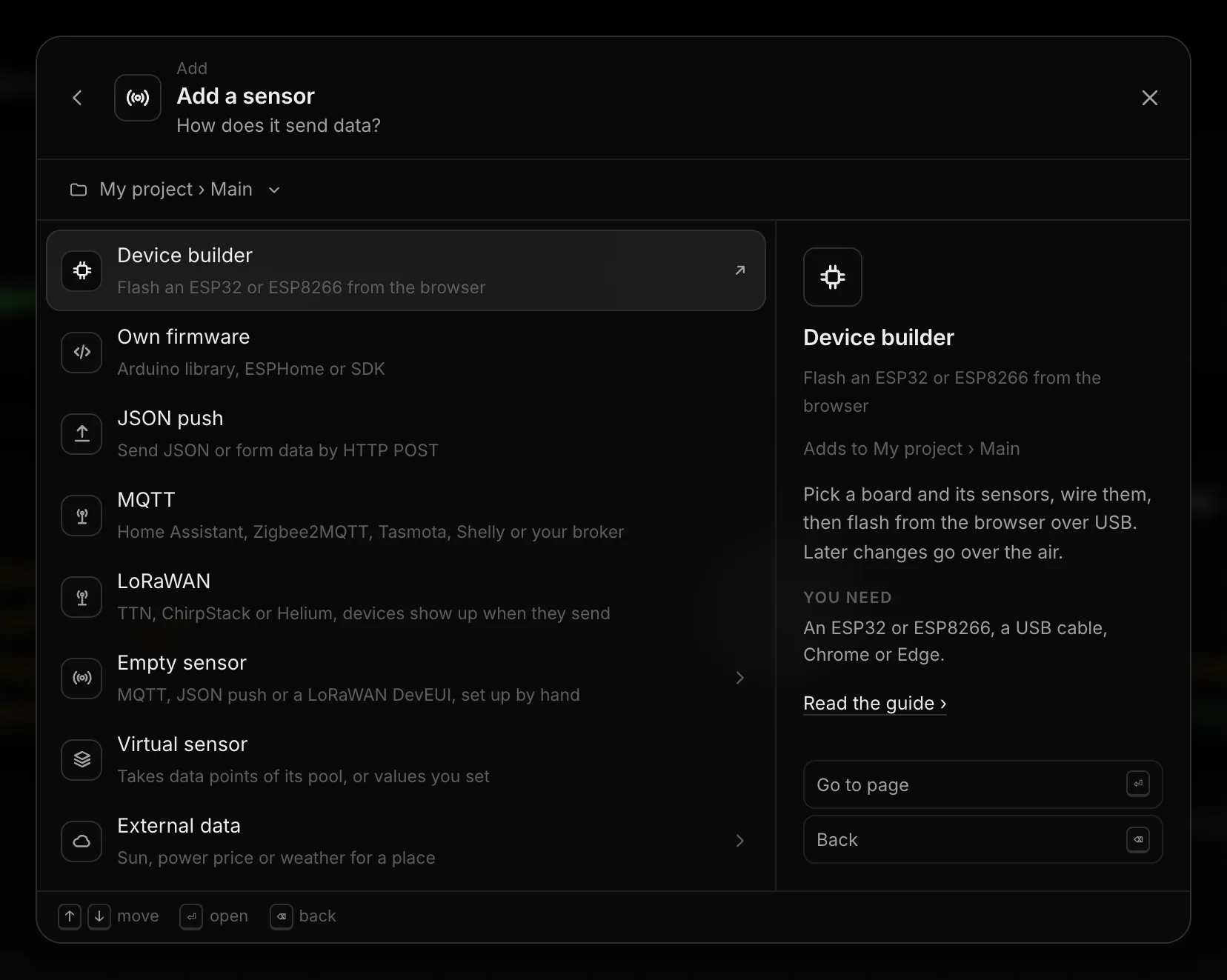
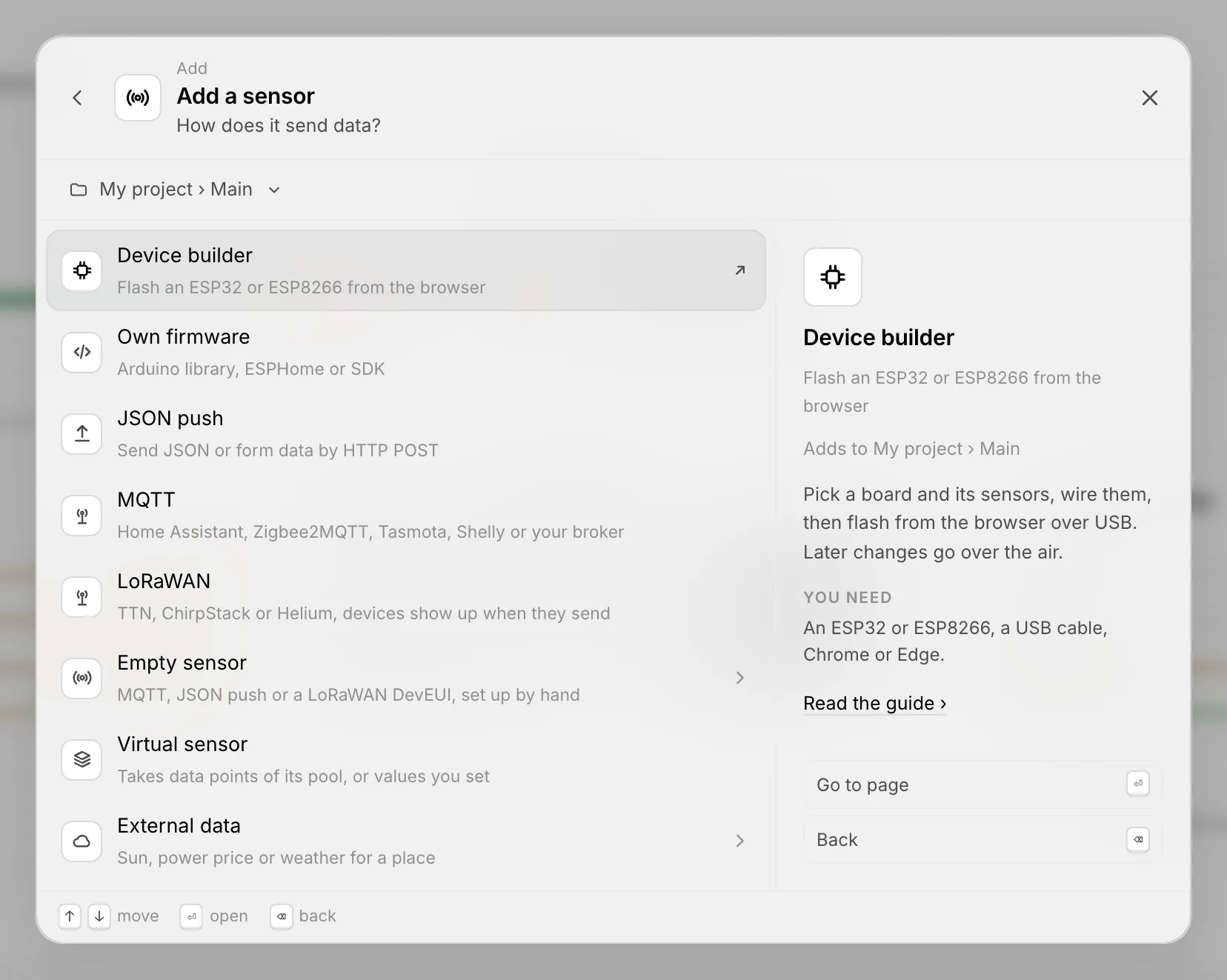
The + in the top bar opens Add. It groups what you can add: Devices and data (Sensor, Interface, Actuator, Device template), Organization (Project, Data pool, Invite member, Link), Infrastructure (integrations), Logic (Automation, Schedule, Target profile) and Views and outputs (Report, Notification channel, Webhook or API key). Opened from a project page, a new sensor goes into that project.
Data pools, settings and moving sensors
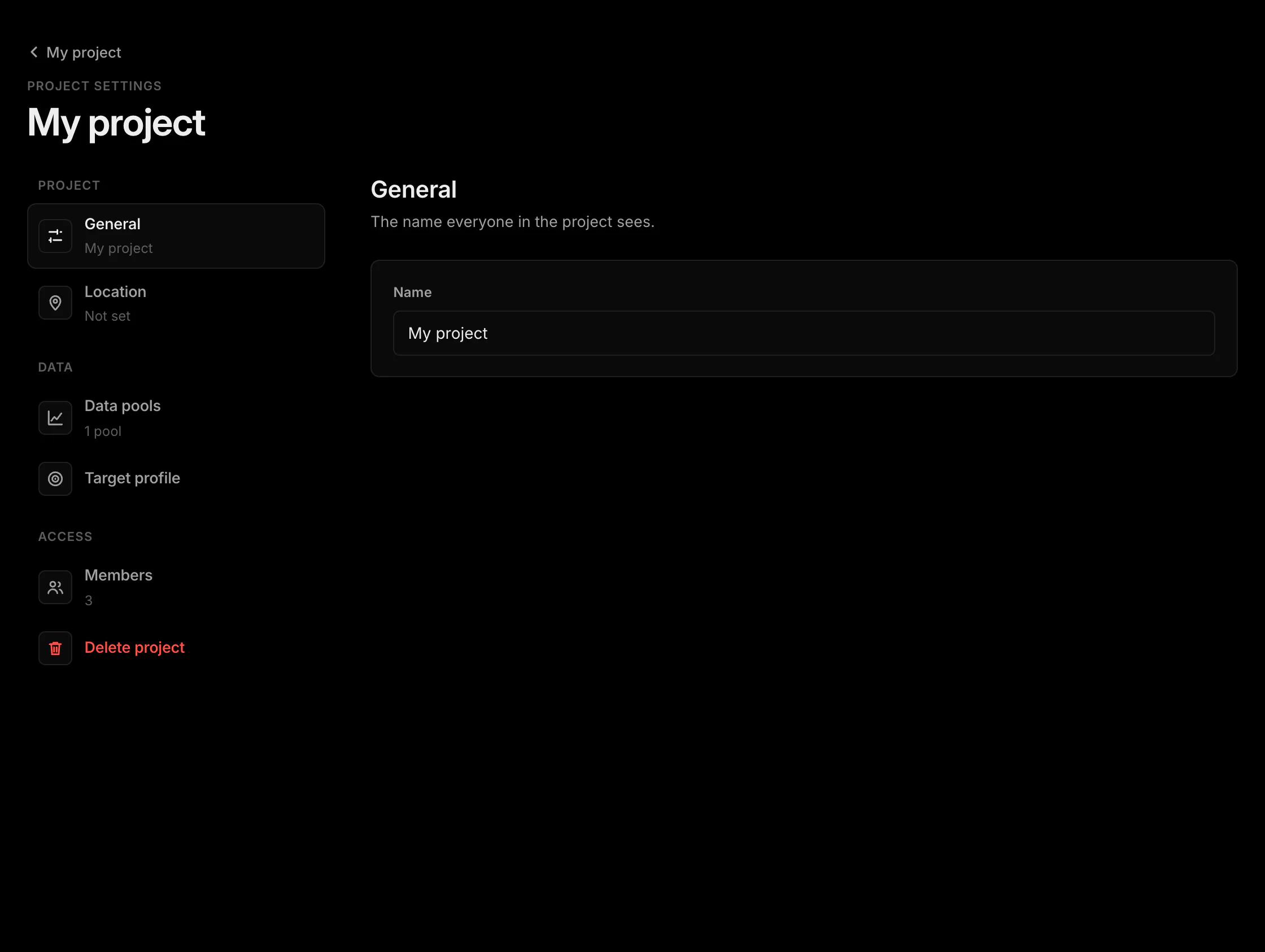
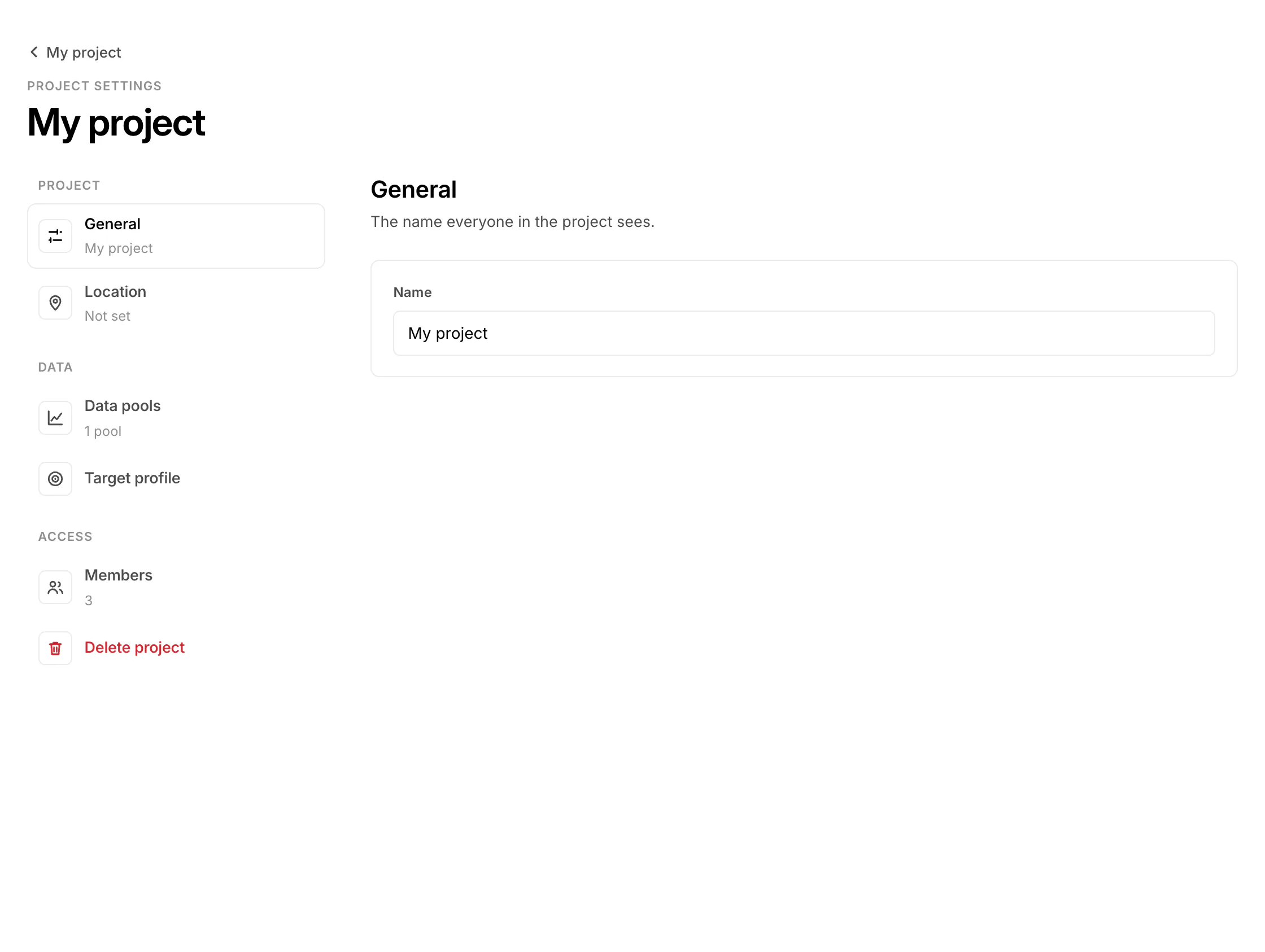
Every sensor lies in exactly one pool. A pool sets how long its sensors keep readings by default (7, 30, 60, 90 days or 1 year); a sensor or a single data point may keep longer or shorter. Each project has one default pool, where new sensors land. Settings of a project has General (name and location, used by external data), Data pools (add, rename, Make default, Keep readings, Delete pool), Target profile and Delete project.
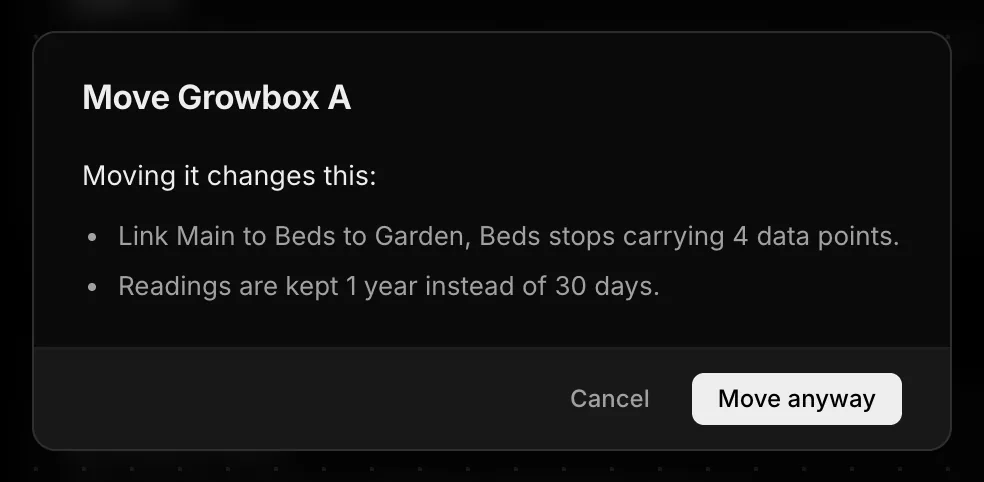
To move a sensor, open its settings and press Move next to Data pool under General. The dialog shows first what changes: links that stop carrying it, virtual sensors that lose an input, members who lose or gain it. Values and history move with the sensor.
| Limit | Value |
|---|---|
| Projects per account | 10 |
| Data pools per project | 10 |
| Links per account | 50, each with up to 100 sensors or data points |
| Sensors per account | 20, external data does not count |
| Data points per sensor | 30 |
Show data points of one pool in another
A link carries data points from a source pool into a target pool, also across projects and accounts. Nothing is copied: the target reads through, read only. Detection, alerts and how long readings are kept stay with the source sensor. A link carries a whole sensor (also data points it gets later) or single data points, and only data points that are at home in the source pool, so links never chain. Open Links on the project page to see them as a map and add one.
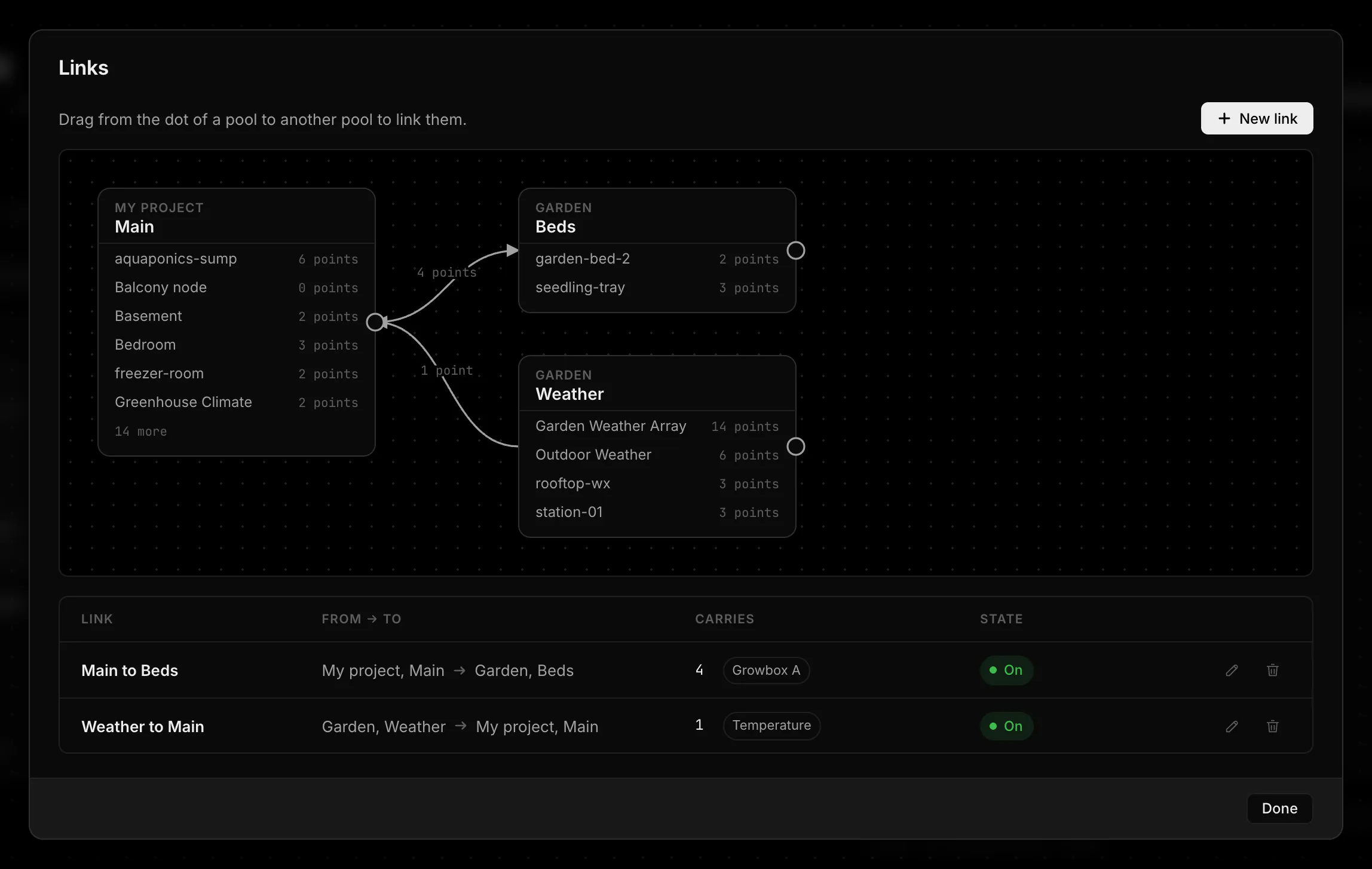
Creating a link needs Manage in the source project and Edit in the target. A link stops carrying values when someone pauses it, when its creator loses one of these rights, or when its sensors are gone; an item stops when its sensor left the source pool. It comes back by itself once that is fixed (except a deleted sensor). A public station in the target shows linked values of another owner only when someone with Manage at the source allowed it.